Close Menu
techwavedispatch.com

    Subscribe to Updates

    Get the latest creative news from FooBar about art, design and business.

    What's Hot

    Skydio’s Lopsided F10 Lightrunner Clears Blind Spots

    November 15, 2026

    Director of Machine Learning Insights [Part 2: SaaS Edition]

    November 15, 2026

    The Hidden Features Every Apple Maps User Should Know About

    November 15, 2026
    Facebook X (Twitter) Instagram
    Trending
    • Skydio’s Lopsided F10 Lightrunner Clears Blind Spots
    • Director of Machine Learning Insights [Part 2: SaaS Edition]
    • The Hidden Features Every Apple Maps User Should Know About
    • Student Ambassador Program’s call for applications is open!
    • Troubleshooting A Black Screen On Your MacBook Is Easier Than You Think
    • Gradio 3.0 is Out!
    • The Right Way To Transfer Your Spotify Playlists And Songs To Apple Music
    • Machine Learning Experts – Sasha Luccioni
    Facebook X (Twitter) Instagram
    techwavedispatch.com
    Subscribe
    Sunday, November 15
    • Home
    • AI Tools & Software
    • Machine Learning
    • Generative AI
    • Robotics & Automation
    • Future Tech & Hardware
    • AI in Business
    • Ethics & Regulations
    • More
      • Gadgets & Smart Devices
      • Cybersecurity & AI
      • Tech Breakthroughs
    techwavedispatch.com
    Home»Gadgets & Smart Devices»Troubleshooting A Black Screen On Your MacBook Is Easier Than You Think
    Gadgets & Smart Devices

    Troubleshooting A Black Screen On Your MacBook Is Easier Than You Think

    adminBy adminNovember 15, 2026No Comments4 Mins Read
    Facebook Twitter Pinterest LinkedIn Tumblr Email
    Troubleshooting A Black Screen On Your MacBook Is Easier Than You Think
    Share
    Facebook Twitter LinkedIn Pinterest Email

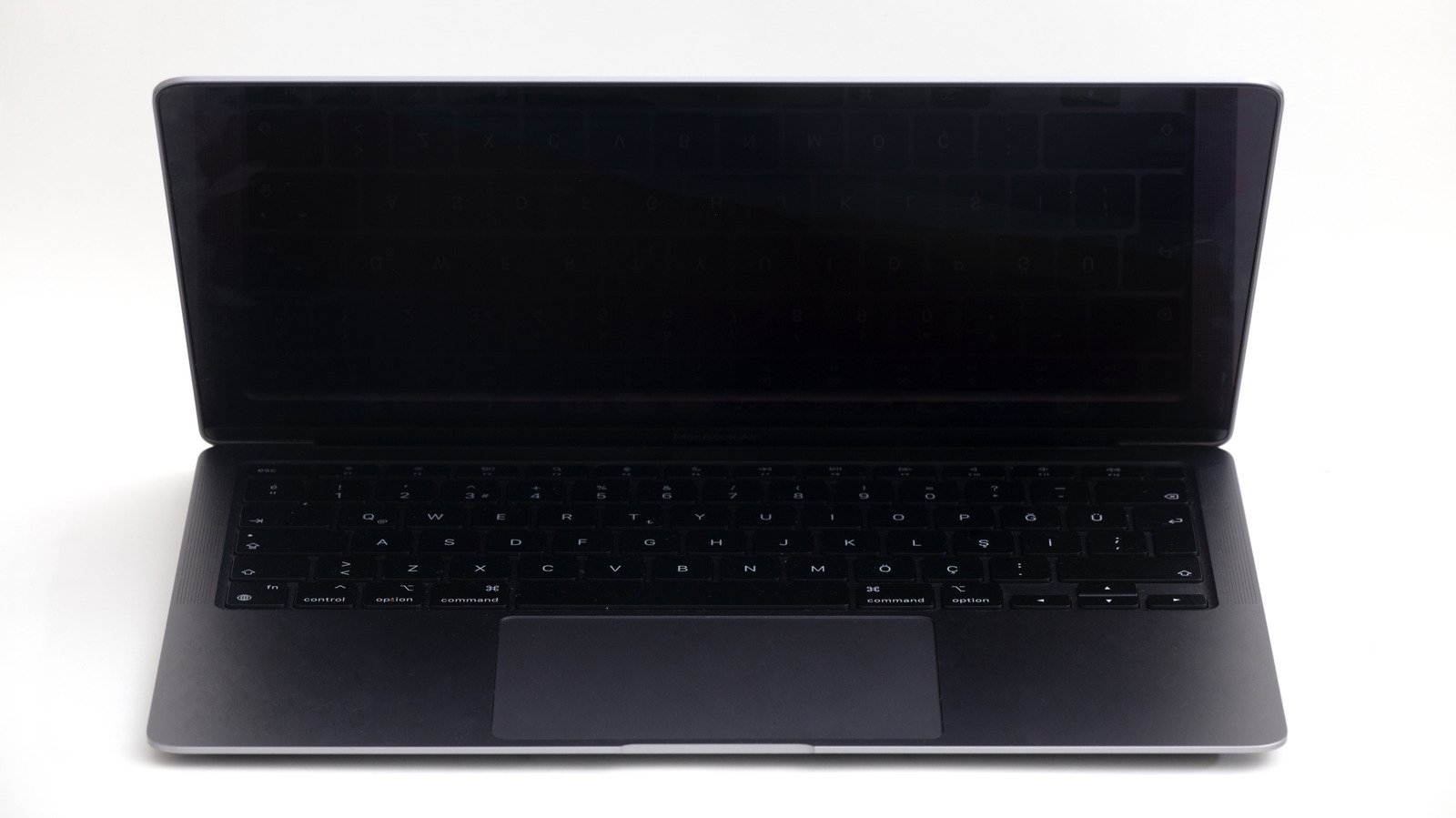
    A black screen on your MacBook doesn’t necessarily mean you’re dealing with a hardware issue.


    A MacBook with its screen turned off.
    Gece33/Getty Images

    MacBooks are usually very reliable laptops, but they’re not immune to bugs and hardware failures. One of the most common issues is getting stuck on a black screen, which can cause many owners to panic. The good news is that a black screen doesn’t always mean your Mac is completely dead. Instead, you may just be dealing with a software bug or an issue you can fix yourself in a few steps. If your MacBook is stuck on a black screen, try these first before taking it to an Apple Store.

    What to do if your MacBook is stuck on a black screen


    A half-open MacBook seen from above.
    Nguyenducquang/Getty Images

    There are many different reasons why a MacBook might get stuck on a black screen, but power is usually the first thing to check. If you’ve left your Mac unplugged for days, it may not have enough power to show the low battery icon. Plug your MacBook into the charger and wait a few minutes to see if it shows any signs of life. Also, check your power adapter and USB-C or MagSafe cable to make sure they’re working — your Mac could just be failing to charge without you realizing it.

    In some cases, the Mac starts up fine and you can hear system sounds or the fans spinning, but the screen stays completely black. The first thing to do is force a reboot. Press and hold the Power button until you hear the classic startup chime. If the Apple logo appears and everything returns to normal, your black screen was likely caused by a software bug. If the screen stays black after the reboot, you may have a hardware issue, such as a faulty display.

    There’s a fairly easy way to check if your MacBook’s display is at fault. Plug your laptop into an external monitor or a TV (you’ll need an HDMI cable and possibly a USB-C to HDMI adapter) and see what happens. If the video appears normally on the monitor but not on your MacBook, you’re very likely facing a problem with the display hardware.

    Other fixes to try


    A MacBook booting up with the Apple logo and a progress bar on the screen.
    Kadroni/Shutterstock

    There are a few other things to try before resorting to Apple Support. If you have an Intel MacBook, resetting the SMC (a subsystem that controls low-level hardware functions) may help if your Mac won’t turn on or display video. Shut down your MacBook, then press and hold Control + Option + Right Shift for about seven seconds, then press the Power button at the same time. Keep holding all four keys for another seven seconds, then release them. Wait a few seconds and try turning on your MacBook again.

    Some older Macs require a different key sequence to reset the SMC. If the first sequence didn’t work on your Mac, shut it down and press Shift + Control + Option (all on the left side) along with the Power button. Hold these keys down for about 10 seconds, then release them and try powering up your Mac. This doesn’t apply to MacBooks with Apple Silicon, since the SMC resets automatically every time you reboot your Mac.

    If you’ve tried everything and your Mac still has a black screen, it’s likely a hardware failure. Your best option now is to set up an appointment with Apple Support so they can diagnose and repair your Mac. And if your Mac is still working fine, now is a good time to think about backing up all your data.

    Black easier MacBook screen Troubleshooting
    Share. Facebook Twitter Pinterest LinkedIn Tumblr Email
    admin
    • Website

    Related Posts

    The Hidden Features Every Apple Maps User Should Know About

    November 15, 2026

    The Right Way To Transfer Your Spotify Playlists And Songs To Apple Music

    November 15, 2026

    AI DJs Completely Kill My Groove

    November 15, 2026
    Leave A Reply Cancel Reply

    Top Posts

    NVIDIA Is Investigating Reports That CEO Jensen Huang Was The Target Of Chinese Spy Efforts

    November 8, 202619 Views

    ADIndex: Layer-Adaptive Sparse Attention Indexing via Group-Level Distillation

    November 11, 20265 Views

    Anthropic releases new Mythos and Fable models amid RSI concerns

    November 9, 20265 Views

    One Policy for 100 Household Tasks: Our Solution for the 2026 BEHAVIOR Challenge

    November 11, 20264 Views
    Don't Miss
    Tech Breakthroughs

    Skydio’s Lopsided F10 Lightrunner Clears Blind Spots

    By adminNovember 15, 20260

    Skydio’s drones have always been magical. From MIT research and early prototypes to what I…

    Director of Machine Learning Insights [Part 2: SaaS Edition]

    November 15, 2026

    The Hidden Features Every Apple Maps User Should Know About

    November 15, 2026

    Student Ambassador Program’s call for applications is open!

    November 15, 2026
    About Us

    Welcome to TechWave Dispatch

    At TechWave Dispatch, we bring you the latest news, insights, and developments from the ever-evolving world of technology. Our mission is to keep readers informed about the innovations shaping our digital future.

    From artificial intelligence and machine learning to cybersecurity, robotics, smart devices, and groundbreaking technologies, we cover the topics that matter in today's fast-moving tech landscape.

    Our Picks

    Skydio’s Lopsided F10 Lightrunner Clears Blind Spots

    November 15, 2026

    Director of Machine Learning Insights [Part 2: SaaS Edition]

    November 15, 2026

    The Hidden Features Every Apple Maps User Should Know About

    November 15, 2026
    Most Popular

    After blocking Muse, Amazon now lets users text Alexa to help them shop

    November 6, 20260 Views

    A controlled world for robot learning and evaluation

    November 6, 20260 Views

    Perplexity now has its own always-on AI agent

    November 6, 20260 Views
    Facebook X (Twitter) Instagram Pinterest
    • Terms and Conditions
    • Privacy Policy
    • Contact Us
    • About Us
    © 2026 TechWave Dispatch. All Rights Reserved.

    Type above and press Enter to search. Press Esc to cancel.