Close Menu
techwavedispatch.com

    Subscribe to Updates

    Get the latest creative news from FooBar about art, design and business.

    What's Hot

    PAMS: Preconditioned Activation-Metric Subspace for Zeroth-Order LLM Fine-tuning

    November 24, 2026

    iRestore Elite Laser Hair Growth System Review: Husband-Approved

    November 24, 2026

    [2611.30584] Do Candlestick Charts Suffice? The Incremental Economic Value of Technical Indicators in Stock Return Prediction

    November 24, 2026
    Facebook X (Twitter) Instagram
    Trending
    • PAMS: Preconditioned Activation-Metric Subspace for Zeroth-Order LLM Fine-tuning
    • iRestore Elite Laser Hair Growth System Review: Husband-Approved
    • [2611.30584] Do Candlestick Charts Suffice? The Incremental Economic Value of Technical Indicators in Stock Return Prediction
    • FAA opens probe after Amazon delivery drone clips cable, crashes into garage
    • Use This Built-In Windows Tool To Find PC Stability Issues
    • HiPPO Functional Memory: Coordinate-Queryable Attention for Irregular Time Series
    • Tidal Is Banning AI-Generated Music Entirely
    • Context-Efficient 3D Annotation with MLLMs via Tri-Planes
    Facebook X (Twitter) Instagram
    techwavedispatch.com
    Subscribe
    Tuesday, November 24
    • Home
    • AI Tools & Software
    • Machine Learning
    • Generative AI
    • Robotics & Automation
    • Future Tech & Hardware
    • AI in Business
    • Ethics & Regulations
    • More
      • Gadgets & Smart Devices
      • Cybersecurity & AI
      • Tech Breakthroughs
    techwavedispatch.com
    Home»Gadgets & Smart Devices»Use This Built-In Windows Tool To Find PC Stability Issues
    Gadgets & Smart Devices

    Use This Built-In Windows Tool To Find PC Stability Issues

    adminBy adminNovember 24, 2026No Comments4 Mins Read
    Facebook Twitter Pinterest LinkedIn Tumblr Email
    Use This Built-In Windows Tool To Find PC Stability Issues
    Share
    Facebook Twitter LinkedIn Pinterest Email

    This tool is a great alternative to Event Viewer.

    A person looking at a monitor displaying the Windows 11 logo.
    Alex Photo Stock/Shutterstock

    An unstable PC can be a nightmare to diagnose. Figuring out what’s causing a blue screen or a driver crash can take hours if you’re digging through event logs and checking for faulty applications. Thankfully, Windows has a suite of troubleshooting programs built specifically to help users diagnose system issues. Most people know about Performance Monitor and Event Viewer, but arguably the best tool to start a troubleshooting session is the long-forgotten Windows Reliability Monitor.

    Introduced with Windows Vista back in 2008, Windows Reliability Monitor is a convenient way to check all of your computer’s logged events. This includes crashed drivers, failed applications and other system health issues you might not otherwise notice. It even gives a stability score to help inexperienced users diagnose stability issues, although that score can be somewhat misleading. It’s a great tool to use when your PC starts experiencing sudden stability issues that need further investigation.

    How to use Windows Reliability Monitor
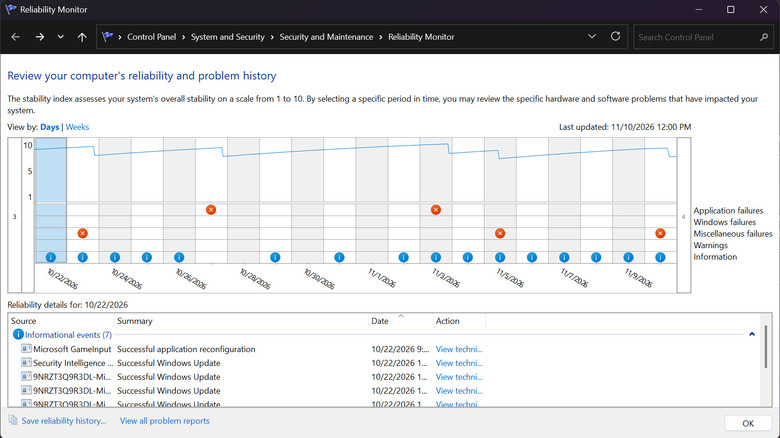

    A screenshot of the Windows Reliability Monitor menu.
    Windows

    Windows Reliability Monitor is an easy application to use, although accessing the program itself can be a little tricky. Every version of Windows can access the program by opening the Run box (Windows Key + R) and typing in:

    If you are using Windows 8 or later, you can also find the Reliability Monitor by opening the Start menu and typing in “reliability.” You should see “View reliability history” as an option. Click on it to bring up the Reliability Monitor. The Control Panel is a third way to access the Reliability Monitor, located under the “Security and Maintenance” subsection of the Security tab.
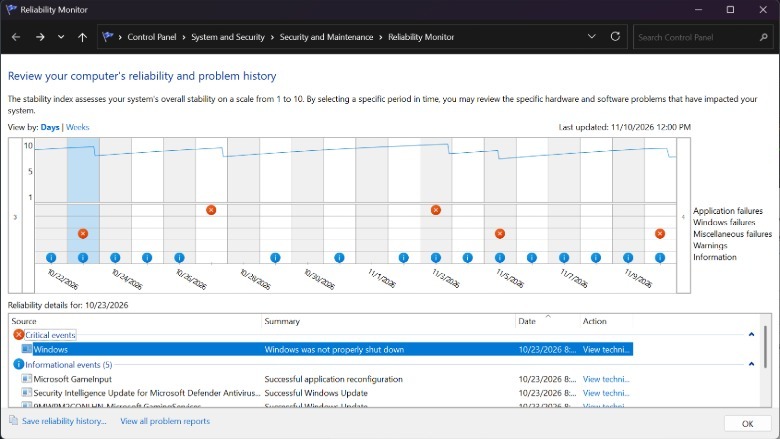
    A screenshot of a critical issue inside of Windows Reliability Monitor.Windows

    The application itself is easy to understand. You’ll see a grid of events that break down your system’s stability based on event logs. Windows keeps track of hardware and application performance at all times, so if something goes wrong, it creates an event log entry that shows up here.

    Clicking the blue “i” icons brings up information about your system that day, such as successful updates or software installations. Any days that experienced a critical software or hardware failure will have a red “x” icon next to them. Clicking the red icon will open the flagged events for further investigation. Days are also ranked with a stability score, indicating how long your PC has gone without issues. It’s not the most reliable data point since you can easily inflate the score by not using your PC, but it can be a starting point when troubleshooting.

    Can Windows Reliability Monitor help with performance?


    A gaming computer resting atop a table beside an RGB keyboard.
    Om.Nom.Nom/Shutterstock

    While Windows Reliability Monitor doesn’t directly improve performance, it can help you find applications and faulty drivers that are causing performance problems. For example, if you experience frequent GPU crashes while running certain applications, those problems would be logged as events and appear in Reliability Monitor. Inspecting the event provides information on what caused the crash, when it occurred and what applications were running at the time. This can help diagnose whether it’s a hardware or software issue, giving you a clear path to fix the error and improve your system’s stability and overall performance.

    If you are more focused on your system’s performance, Windows offers the Performance Monitor tool to check your hardware’s real-time usage. This is a better tool for diagnosing issues with a potentially faulty CPU, GPU, RAM, or network instability. Task Manager is also an invaluable tool for inspecting background applications that could be using your PC’s resources.

    Differences between Reliability Monitor and Event Viewer
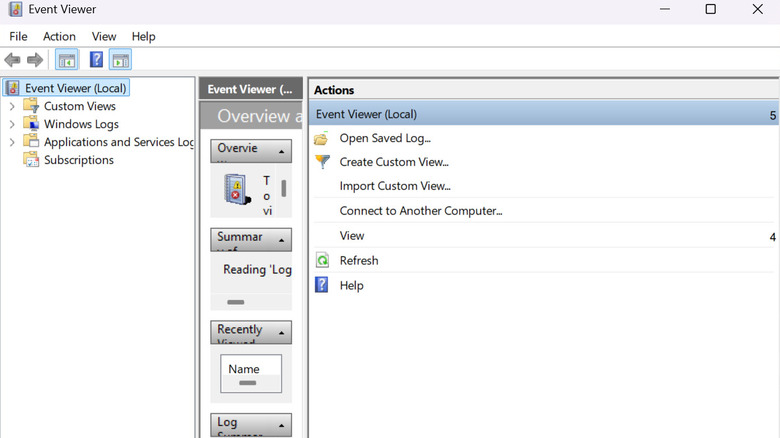

    A screenshot of the Windows Event Viewer tool.
    Windows

    More experienced Windows users might wonder why they’d use the Reliability Monitor over the Event Viewer. For experienced PC users who want an exhaustive breakdown of each event log, the Event Viewer is unmatched. It offers significantly more information on each system event and has multiple ways to filter information to help pinpoint what’s wrong.

    Where Reliability Monitor shines is its simplicity. It gives a clean UI to see which events caused an issue, when they occurred and a rough outline of what happened. Event Viewer can help if you need details on the exact application or your PC’s state during failure, yet that information is often overkill for the average Windows user. If you need more information on the issue, then we’d suggest swapping to Event Viewer to get a better idea of what’s happening. For sudden performance or stability issues, it’s much more convenient to use Reliability Monitor first.

    BuiltIn Find Issues Stability tool Windows
    Share. Facebook Twitter Pinterest LinkedIn Tumblr Email
    admin
    • Website

    Related Posts

    iRestore Elite Laser Hair Growth System Review: Husband-Approved

    November 24, 2026

    Tidal Is Banning AI-Generated Music Entirely

    November 24, 2026

    GTA 6 Cloud Streaming Comes To PS5 And PlayStation Portal

    November 24, 2026
    Leave A Reply Cancel Reply

    Top Posts

    NVIDIA Is Investigating Reports That CEO Jensen Huang Was The Target Of Chinese Spy Efforts

    November 8, 202619 Views

    ADIndex: Layer-Adaptive Sparse Attention Indexing via Group-Level Distillation

    November 11, 20266 Views

    Anthropic releases new Mythos and Fable models amid RSI concerns

    November 9, 20266 Views

    If AGI is so close, why is everyone leaving? The neolabs and their bets

    November 6, 20266 Views
    Don't Miss
    Machine Learning

    PAMS: Preconditioned Activation-Metric Subspace for Zeroth-Order LLM Fine-tuning

    By adminNovember 24, 20260

    arXiv:2611.28476v1 Announce Type: new Abstract: Zeroth-order (ZO) optimization provides a computationally efficient approach to fine-tuning…

    iRestore Elite Laser Hair Growth System Review: Husband-Approved

    November 24, 2026

    [2611.30584] Do Candlestick Charts Suffice? The Incremental Economic Value of Technical Indicators in Stock Return Prediction

    November 24, 2026

    FAA opens probe after Amazon delivery drone clips cable, crashes into garage

    November 24, 2026
    About Us

    Welcome to TechWave Dispatch

    At TechWave Dispatch, we bring you the latest news, insights, and developments from the ever-evolving world of technology. Our mission is to keep readers informed about the innovations shaping our digital future.

    From artificial intelligence and machine learning to cybersecurity, robotics, smart devices, and groundbreaking technologies, we cover the topics that matter in today's fast-moving tech landscape.

    Our Picks

    PAMS: Preconditioned Activation-Metric Subspace for Zeroth-Order LLM Fine-tuning

    November 24, 2026

    iRestore Elite Laser Hair Growth System Review: Husband-Approved

    November 24, 2026

    [2611.30584] Do Candlestick Charts Suffice? The Incremental Economic Value of Technical Indicators in Stock Return Prediction

    November 24, 2026
    Most Popular

    The General Purpose Pendulum – O’Reilly

    November 6, 20260 Views

    Robot Videos: Home Cable Robot, JPL turns 90, and More

    November 6, 20260 Views

    RIP Cybertruck. You Were Unloved, Unwanted, and Utterly Absurd

    November 6, 20260 Views
    Facebook X (Twitter) Instagram Pinterest
    • Terms and Conditions
    • Privacy Policy
    • Contact Us
    • About Us
    © 2026 TechWave Dispatch. All Rights Reserved.

    Type above and press Enter to search. Press Esc to cancel.