Close Menu
techwavedispatch.com

    Subscribe to Updates

    Get the latest creative news from FooBar about art, design and business.

    What's Hot

    iOS 27 Has Automatic Subtitles, But You Can Simply Turn Them Off

    November 28, 2026

    How To Get Warnings About Speed Cameras In Android Auto

    November 28, 2026

    The Best Black Friday MacBook Deals Take Up to $300 Off

    November 28, 2026
    Facebook X (Twitter) Instagram
    Trending
    • iOS 27 Has Automatic Subtitles, But You Can Simply Turn Them Off
    • How To Get Warnings About Speed Cameras In Android Auto
    • The Best Black Friday MacBook Deals Take Up to $300 Off
    • The Important iCloud Security Settings You Should Be Using
    • The Peak Design Gear We Love Is Up to 40 Percent Off at Shop.com
    • How Far Can You Track A Samsung SmartTag?
    • Oura Ring 5 Is $100 Off This Black Friday and Cyber Week (2026)
    • Infinity Vision Vs. IMAX: What’s The Difference?
    Facebook X (Twitter) Instagram
    techwavedispatch.com
    Subscribe
    Saturday, November 28
    • Home
    • AI Tools & Software
    • Machine Learning
    • Generative AI
    • Robotics & Automation
    • Future Tech & Hardware
    • AI in Business
    • Ethics & Regulations
    • More
      • Gadgets & Smart Devices
      • Cybersecurity & AI
      • Tech Breakthroughs
    techwavedispatch.com
    Home»Gadgets & Smart Devices»How To Get Warnings About Speed Cameras In Android Auto
    Gadgets & Smart Devices

    How To Get Warnings About Speed Cameras In Android Auto

    adminBy adminNovember 28, 2026No Comments4 Mins Read
    Facebook Twitter Pinterest LinkedIn Tumblr Email
    How To Get Warnings About Speed Cameras In Android Auto
    Share
    Facebook Twitter LinkedIn Pinterest Email

    These are the settings to look for in Google Maps and Waze.


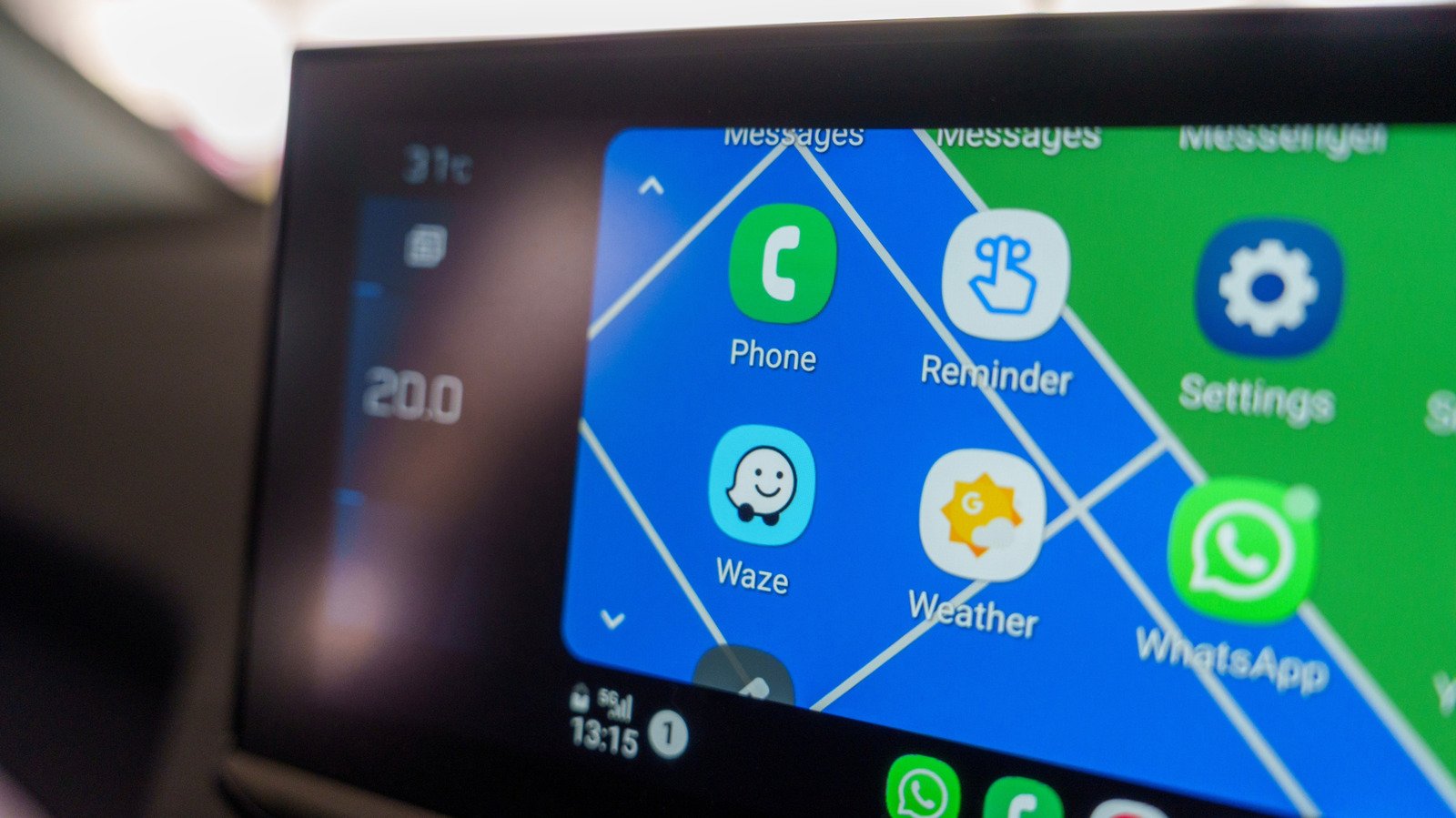
    Android Auto interface on car head unit with Waze icon.
    TY Lim/Shutterstock

    Several US states and regions around the world have now adopted speed cameras to automatically enforce traffic rules and curb reckless driving. And while such systems alongside automated license plate reading cameras are intended to keep our roads safer, they’re sometimes located on roads where you may accidentally drift over the limit. If you’re driving in a new and unfamiliar area, a sudden drop in the speed limit can catch you off-guard, so it can be helpful to know about any potential speed cameras you may encounter.

    Luckily, you can use Android Auto on your car’s infotainment system to stay informed about upcoming red light cameras, speed traps and even average speed enforcement areas. This data comes from other drivers who volunteer to report the cameras in apps like Google Maps and Waze while driving. While these apps cannot warn you about every single enforcement device on the road, they still serve as a useful early warning system. Best of all, you don’t have to buy any extra hardware to enable speed camera alerts within Android Auto or install a radar detector, which isn’t legal in some jurisdictions.

    Enable speed camera warnings in Android Auto


    Person driving along a highway with Google Maps interface on infotainment display.
    Tlorenz/Shutterstock

    To get warnings about upcoming speed cameras on your route within Android Auto, you’ll need to enable the setting within the navigation app of your choice. Android Auto typically brings up Google Maps by default. To enable alerts, open the Maps app, tap on your profile photo located to the top-right corner of your screen and navigate to Settings > Navigation. Here, enable the setting labelled “Get alerts for reported incidents and other conditions that may impact your drive.”

    Some other popular navigation apps like Waze offer more granular control over speed camera alerts and also work with Android Auto. Assuming you already have it installed on your phone, open Waze and navigate to Settings > Alerts and reports > Reports > Cameras. Here, you can configure alerts for five different camera types, including speeding, red light and mobile police cameras. You can enable the ones you need and set the app to alert you while driving. These changes automatically apply whenever you use Waze on your car’s display through Android Auto.

    Even though Google owns Waze, the general consensus is that Google Maps doesn’t tend to warn about speed cameras and other enforcement measures as frequently as Waze. So if this aspect is important to you, you may want to open Waze on Android Auto instead of sticking with Google Maps. The good news is that your car’s infotainment display will automatically bring up the last-used navigation app, so you don’t have to manually switch over every single time.

    How to see the road’s speed limit in Android Auto


    Google Maps view with speed limit and speedometer feature enabled.
    Alexanderstock23/Shutterstock

    Google Maps and Waze can also display the posted speed limit for any roads you drive on. Alongside that, you may also want to enable the speedometer feature, which uses your phone’s GPS data to display your car’s current speed in real-time. This can be helpful on older cars, especially if you’re running a larger wheel or tires than stock as this can significantly skew the speedometer reading. For example, a five percent larger overall tire circumference compared to your car’s factory default can result in the gauge reading 105 mph instead of 100 mph. You don’t have to worry about the car’s speed calibration sensor when you use your navigation app’s GPS speedometer feature.

    To enable the speed limit and speedometer within Google Maps, open the app’s settings menu and tap Navigation. Scroll to the bottom and enable the Speedometer toggle alongside Speed limits. Once you’ve enabled the speedometer feature in Google Maps, you’ll see your car’s current speed appears alongside the road’s speed limit whenever you start navigating to a destination.

    In Waze, the speedometer feature can be enabled within Settings > Map display > Speedometer > Show speed limit > Always. The app also goes a step further than Google Maps — it can alert you whenever you exceed the speed limit by a set threshold. For example, you can set the warning to kick in only when you’re travelling five miles per hour over the limit. With the excess speed alerts and camera warnings set up, using Waze on Android Auto should ensure you’ll practically never get a speeding ticket.

    Android Auto Cameras speed warnings
    Share. Facebook Twitter Pinterest LinkedIn Tumblr Email
    admin
    • Website

    Related Posts

    iOS 27 Has Automatic Subtitles, But You Can Simply Turn Them Off

    November 28, 2026

    The Best Black Friday MacBook Deals Take Up to $300 Off

    November 28, 2026

    The Important iCloud Security Settings You Should Be Using

    November 28, 2026
    Leave A Reply Cancel Reply

    Top Posts

    NVIDIA Is Investigating Reports That CEO Jensen Huang Was The Target Of Chinese Spy Efforts

    November 8, 202620 Views

    Mixture of Experts Explained

    November 13, 202610 Views

    Anthropic launches Claude Meetings to turn workplace discussions into plans and tasks

    November 10, 20269 Views

    Finetuning olmOCR to be a faithful OCR-Engine

    November 10, 20268 Views
    Don't Miss
    Gadgets & Smart Devices

    iOS 27 Has Automatic Subtitles, But You Can Simply Turn Them Off

    By adminNovember 28, 20260

    iOS 27 adds captions to your videos on its own, but a few changes in…

    How To Get Warnings About Speed Cameras In Android Auto

    November 28, 2026

    The Best Black Friday MacBook Deals Take Up to $300 Off

    November 28, 2026

    The Important iCloud Security Settings You Should Be Using

    November 28, 2026
    About Us

    Welcome to TechWave Dispatch

    At TechWave Dispatch, we bring you the latest news, insights, and developments from the ever-evolving world of technology. Our mission is to keep readers informed about the innovations shaping our digital future.

    From artificial intelligence and machine learning to cybersecurity, robotics, smart devices, and groundbreaking technologies, we cover the topics that matter in today's fast-moving tech landscape.

    Our Picks

    iOS 27 Has Automatic Subtitles, But You Can Simply Turn Them Off

    November 28, 2026

    How To Get Warnings About Speed Cameras In Android Auto

    November 28, 2026

    The Best Black Friday MacBook Deals Take Up to $300 Off

    November 28, 2026
    Most Popular

    Why the 2026 Solar Eclipse Will Reshape Corona Studies

    November 6, 20260 Views

    A new way for LLMs to retain knowledge in continual learning

    November 6, 20260 Views

    Can a Radar-Equipped AC Actually Cut Your Power Bill?

    November 6, 20260 Views
    Facebook X (Twitter) Instagram Pinterest
    • Terms and Conditions
    • Privacy Policy
    • Contact Us
    • About Us
    © 2026 TechWave Dispatch. All Rights Reserved.

    Type above and press Enter to search. Press Esc to cancel.