

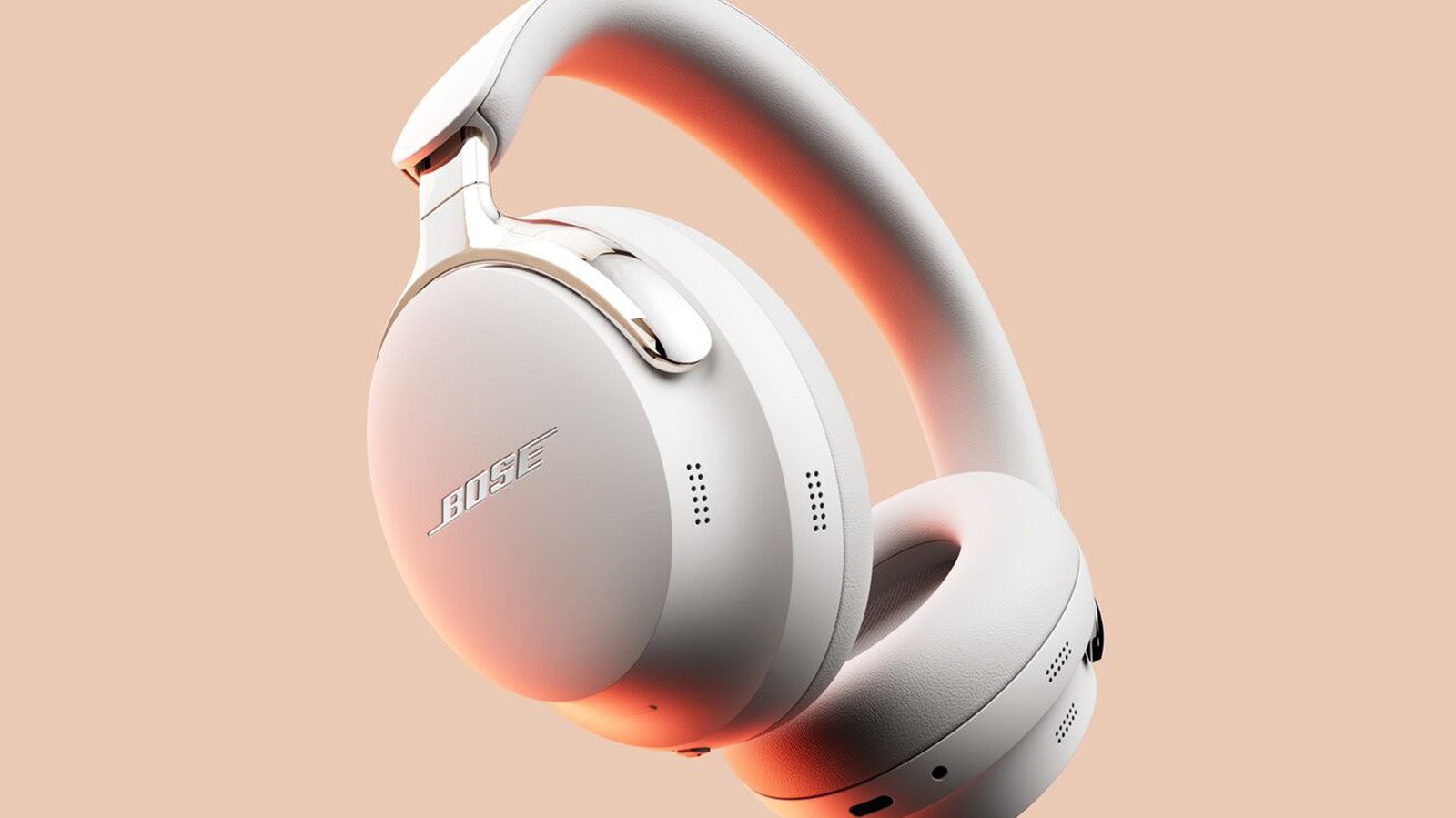
Pairing your Bose headphones is just the beginning. A few small tweaks in the companion app’s settings can make your headphones feel more like yours.
Bose has made some of the most popular headphones around for years, but even if you’ve been using them for a while, you may not be getting everything you can out of yours. The company’s headphones are perfectly capable of producing great sound right out of the box, but some of their best features actually have to be activated manually. Whether there’s something you always wished your headphones could do or you just want to see if they can perform even better, it’s worth exploring settings like an equalizer, multi-connection support, noise canceling, shortcuts to your favorite features, or sidetone settings.
Keep in mind that not every pair of Bose headphones will have access to all of these settings. Newer QuietComfort models are upgraded in all the right places, offering a few unique features, while first-generation QuietComfort Ultra and QuietComfort headphones lack some of those features. You’ll also need to download the Bose app to tweak anything beyond their basic settings, as the controls on the headphones themselves are pretty minimal.
Adjust the equalizer for better sound
One useful feature on compatible Bose headphones is the equalizer (EQ). Like with any piece of audio equipment, the equalizer lets you modify different sound frequencies to your taste, like adjusting the audio quality in Apple Music, letting you pump up the bass or improving the high end so it’s brighter. Reviews often call out Bose for boosting bass too much out of the box, so it may be a good idea to try turning it down a touch before making other adjustments.
Bose’s equalizer only lets you change volume across three bands — bass, mid and treble — but that’s plenty for most users without making it too complex. There are also preset options to choose from if you want to take Bose’s recommendations or pick one to start with and customize your profile from there. You’ll find the equalizer on the home screen of the Bose app, under EQ.
Set up multipoint connections for (relatively) seamless device switching
One of the more annoying aspects of using Bluetooth headphones is having to disconnect and reconnect them whenever you want to switch from one device to another. Bluetooth multipoint lets Bluetooth devices connect to multiple sources at once, so you can switch between them without disconnecting and reconnecting. Compatible Bose headphones have this feature, but you have to enable it in the app.
You’ll find Bluetooth multipoint in the Settings section of the app, under Bluetooth Connections. Just toggle it on, and you’ll be able to connect your headphones to two different audio sources. To switch devices, pause the audio on one and press play on the other, or swap between them in the app if the switch doesn’t happen. Like basically everything to do with Bluetooth, multipoint connection doesn’t always work perfectly, but it’s extremely convenient when it does.
Choose a noise-canceling mode or create your own
Bose features some serious pros of using noise-canceling headphones. You can choose from a few modes to adjust how noise-canceling works, with newer models adding more modes. QuietComfort Ultra headphones turn on in Quiet mode by default, but if you find an option you like better, you can set the app to remember the last mode used through the app’s Settings menu.
Under the Modes menu in the app, you’ll find at least two different noise-canceling presets, depending on which headphones you have. Quiet (full noise cancellation) and Aware (full transparency) are available on the QuietComfort Ultra headphones. In newer headphones, Immersion mode aims to replicate the experience of music being played from a stage in front of you, and Cinema mode enhances dialogue clarity while you’re watching movies and TV. You can also define multiple custom modes by choosing which specific noise-canceling features to activate.
Add a shortcut for your most-used feature
Many Bose headphones let you customize their controls, though the specifics will obviously depend on which model you own. QuietComfort Ultra headphones have a touch-sensitive strip, and older headphone models offer the Action Button, both of which can activate your chosen shortcut.
To set the behavior of the custom control, check the Shortcut option in the app. Depending on your model, this will let you choose from a few options, including hearing the battery level as it changes, changing the Immersive Audio mode and switching between previously connected Bluetooth devices. For headphones, you can only set one, but some earbuds let you assign a different shortcut to each ear. If you don’t use shortcuts and don’t want to risk accidentally activating them, you can also turn them off completely in the app.
Change your Self Voice settings for clearer calls
A somewhat more niche feature comes in the form of Self Voice. If you’ve ever taken a call while wearing headphones, especially noise-canceling ones, you might be familiar with how strange it can be to hear your own voice muffled as you speak. By default, Bose headphones feed a certain amount of your own voice back to you to make speaking feel more natural, otherwise known as sidetone.
The Self Voice feature in the app lets you adjust just how much comes through, but you won’t find it on the home screen. Instead, tap the Settings gear icon and look for Self Voice there, where you can set it to High, Medium or Low, or turn it off completely. As long as it’s not turned off, Self Voice activates automatically during calls, so you don’t need to manually toggle it on.
