

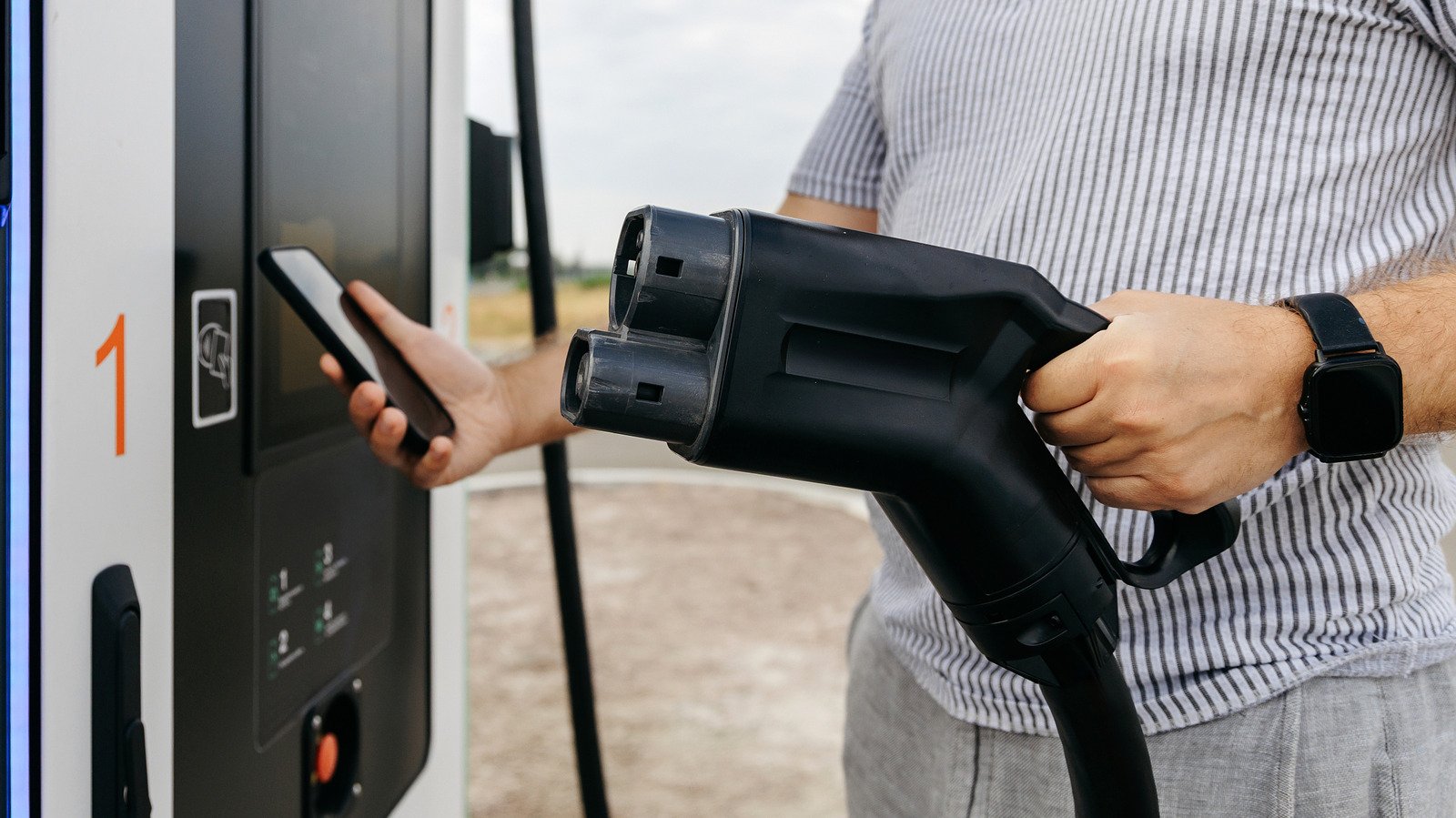
Whether EV routing works depends on your car, your phone and the navigation app you use.
Owning an electric car means you need to adapt your driving to your surroundings. You’re not worrying about where to fill up your gas tank anymore, but about where to find the nearest charging station. Long trips mean you’re likely to need to top off your EV’s battery; otherwise you’re going to reach an abrupt end.
You could find charging stations yourself and add them as stops on your trip, but that’s not ideal. EV routing can take some of the hassle out of planning. It’ll plan stops around your route with an idea of when you’re arriving and how much charge you’ll have left. Google Maps and Apple Maps both feature EV routing on CarPlay and Android Auto, but there are some differences, and it isn’t universal. You’ll need to know what your car supports and how to use your navigation app.
Check which EV routing features your car supports
Before you grab your keys, check that your car supports the EV routing features you need. Just having CarPlay or Android Auto doesn’t guarantee support, unfortunately. Some cars will also work directly with EV features through CarPlay, while others might need an extra app to link the car to Apple Maps.
Ford’s Mustang Mach-E and F-150 Lightning support Apple Maps EV routing, as do Toyota’s 2023 and newer EVs in the US. Google expanded Android Auto’s charging recommendations to more than 350 US EV models in March 2026.
Android Auto isn’t the same as having Google Maps built into your car. Android Auto displays the apps from your phone, but if your car already has Google Maps built in, it’ll run directly on your infotainment system with access to the car’s battery data.
Setting up Apple Maps EV routing on CarPlay
There are three ways for EV routing to work on Apple Maps via CarPlay. For cars that don’t need a manufacturer app installed, connect your iPhone to CarPlay while you’re parked, then open the Apple Maps app. Search for your final destination to get your directions, then tap Connect above the list of available routes.
If your car needs a manufacturer app installed, you’ll need to download it from the App Store first. Once it’s installed and set up, open Apple Maps, tap your profile picture then tap Vehicles > Connect Your Electric Vehicles. Follow any of the on-screen instructions to complete the process. You’ll be able to set up your preferred charging network at this point, too.
Some manufacturers have their own connection process in their app. Toyota owners, for example, tap Find > Apple Maps EV Routing, agree to the terms, then tap Connect Vehicle to Apple Maps and follow any extra instructions. Once connected, you’ll be able to track your EV’s battery levels in the app, with appropriate charging stops recommended on your route and live charger availability in some cases. When your battery drops too low, Maps will route you to the nearest compatible charger.
Check your network preferences, too. Ford suggests Tesla Superchargers as the preferred network for some Mustang owners, and Apple Maps can prioritize them, though you’ll need the right fast-charging adapter.
Setting up Google Maps EV routing on Android Auto
Make sure Google Maps is up to date on your phone. Google says you’ll need version 25.44 or later for battery estimates to work.
Next, head to Google Maps and tap your profile icon, then tap Settings > Your vehicles. Select Electric as your engine type, then tap Add vehicle. You’ll be asked to choose the make, model, year and trim. Double-check the connections listed under Your plugs and edit them if you need to, then tap Save to confirm.
At this point, connect to Android Auto and confirm your car details when prompted. Start planning your trip in Google Maps and you’ll see the estimated battery usage and an Add charging button on your car’s display. Select that, add your starting battery percentage and then confirm. Google Maps will then add charging stops to your trip and display your predicted arrival battery percentage. You can change these stops and set a preferred arrival battery level, too.
Don’t take the prediction as gospel, though. Live driving conditions, your car’s condition and the weather can all affect the estimate, so keep an eye on your charge level as you drive.
Other options for EV routing
It’s easier to use Google Maps or Apple Maps for EV routing, but there are other options. For instance, the A Better Routeplanner app (or ABRP for short) supports EV-specific trip planning. You can add your car model and a destination, and it’ll generate routes with charging stops on the way. You can use it on your dashboard through CarPlay or Android Auto if you’ve got an ABRP Premium subscription.
ABRP does support live battery information in some cars if you’re running Android Auto, but you’ll need to give it the Car information permission in the app’s settings. There’s no equivalent option for CarPlay users, though.
You don’t necessarily need EV routing to find compatible chargers. With your car profile set up, search Google Maps for charging stations and select Your plugs as the EV plug filter. You’ll need to judge whether you can reach each stop on your current charge.
Until EV charging stops are as ubiquitous as gas stations, you’ll need to think a little more about where you can charge on long trips. Just make sure you leave plenty of charge between stops so you’re not left running low with no chargers nearby.
