

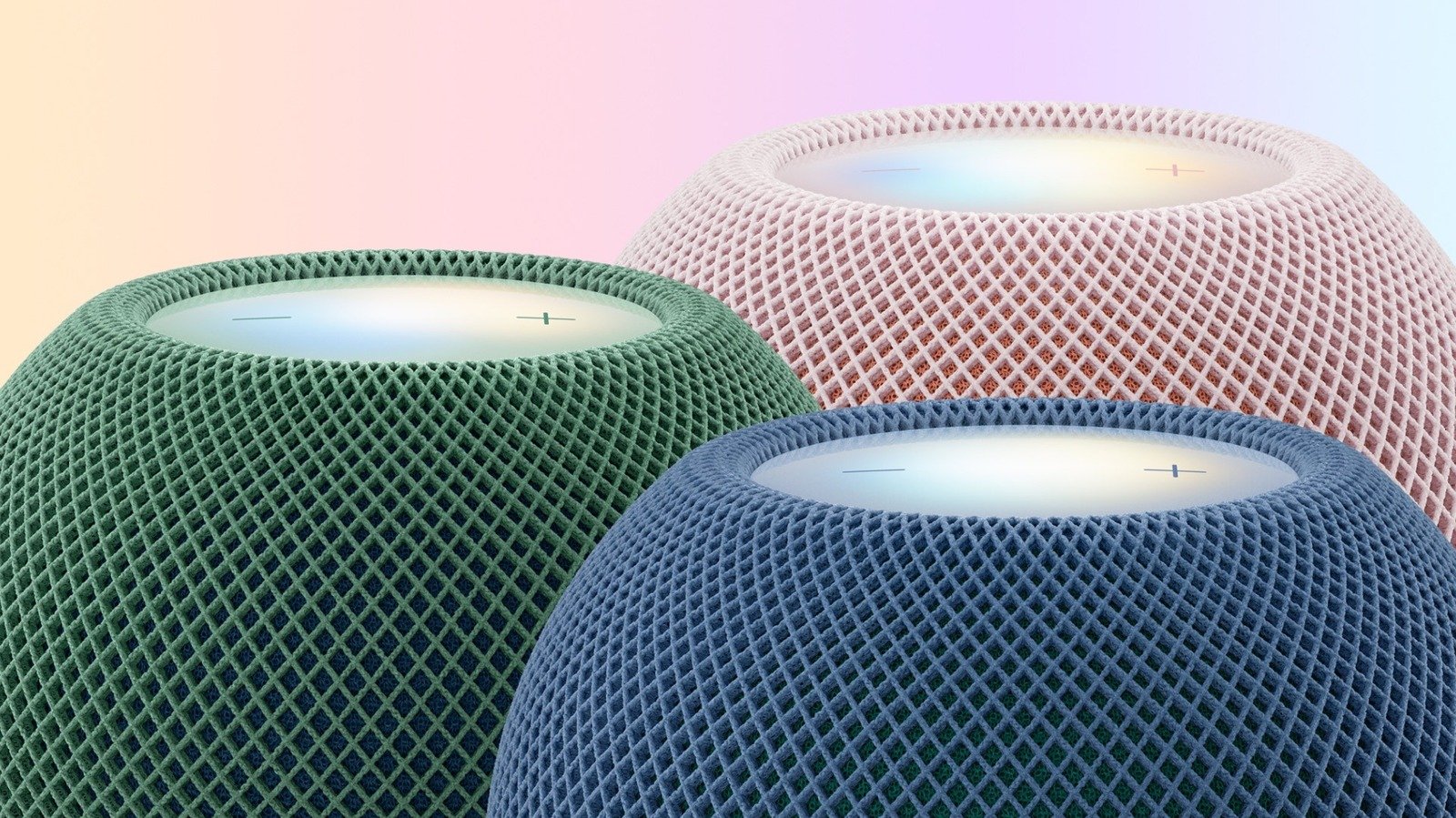
Apple’s latest HomePod update makes the top of your speaker glow in sync with music.
Apple’s HomePod has a basic set of lights on top that don’t do much beyond glowing when Siri is listening or when something is playing. But following the launch of the HomePod mini 2, Apple also introduced a new feature called Sound Glow that makes better use of these lights. When turned on, the top of the speaker becomes a colorful light show synced to the song you’re listening to — and the good news is that it’s not exclusive to the latest HomePod mini. The feature is part of HomePod Software 27.2 and also works with the original HomePod mini and the HomePod 2 (the larger model). Here’s a breakdown of how Sound Glow works and how you can enable (or disable) it on your HomePods.
How does the Sound Glow feature work?
HomePods don’t have a traditional display like Apple’s HomeView. Instead, Apple has included an array of LEDs on top along with a touch-sensitive surface that lets users access quick controls such as volume and play/pause. With the latest HomePod software update, these LEDs are now used to make HomePods a little more fun with Sound Glow. Now, when you play a song, the speaker pulls colors from the album art and pulses them in time with the music’s beat. Listening to Taylor Swift’s The Life of a Showgirl will result in predominantly green and orange lights, while Miley Cyrus’s Endless Summer Vacation will make the lights on your HomePod turn blue.
Apple says that the light animation reacts in real time to the bass and treble of the song being played, so two songs from the same album will glow differently. Also, Sound Glow isn’t limited to songs — it also works with podcasts and Apple’s ambient sounds. For instance, the Rain soundscape features an animation with a gentle pitter-patter effect. Songs without artwork or videos revert to the HomePod’s standard white light. It all happens automatically and you really don’t have to think about it.
There are a few limitations worth noting, though. Don’t expect Sound Glow to fully light up your living room — the lights aren’t bright enough to do that unless the room is completely dark. The feature is also not available on the original HomePod released in 2018, even though it can be updated to the latest HomePod software. You’ll also need an Apple Intelligence-enabled device paired with your HomePods for Sound Glow to work — that means an iPhone 15 Pro or newer, an M1 Mac or newer or one of the latest iPads. An Apple TV running tvOS 27 also does the trick to enable Sound Glow on your HomePods.
How to get Sound Glow on your HomePod
If you have HomePods and a compatible Apple device, setting up Sound Glow is easy, but you’ll need to make sure they’re all running the latest software first. That means HomePod Software 27.2 or later on your HomePods and iOS 27.2 on your iPhone or iPad. HomePods usually update automatically after a while, but you can confirm in the Home app from another Apple device. Tap the three-dot button and select Home Settings, then look for the Software Update menu. Even a brand-new HomePod mini 2 may need a software update, since it may ship with a version prior to 27.2 installed.
Once everything is up to date, you can finally enable Sound Glow. Go back to the Home app’s main screen and tap your HomePod, then go to Settings and scroll down until you find the Sound Glow toggle. Just flip it on, and the feature will work — you’ll need to do this for each HomePod individually. Ask Siri to play a song or use AirPlay on your iPhone to try out Sound Glow and see if it’s working. And if you don’t like Sound Glow, turning it off requires pretty much the same steps as turning it on, but now you’ll have to flip the toggle to off instead.
