Close Menu
techwavedispatch.com

    Subscribe to Updates

    Get the latest creative news from FooBar about art, design and business.

    What's Hot

    Action-Conditioned Spatio-Temporal Forecasting

    November 23, 2026

    Nvidia tried life without Jensen Huang and it lasted about two weeks

    November 23, 2026

    How To Pair Your Bluetooth Headphones To Your Windows PC

    November 23, 2026
    Facebook X (Twitter) Instagram
    Trending
    • Action-Conditioned Spatio-Temporal Forecasting
    • Nvidia tried life without Jensen Huang and it lasted about two weeks
    • How To Pair Your Bluetooth Headphones To Your Windows PC
    • Unified Analysis of Discounted and Average-Reward Cases
    • Sierra doubles valuation to $30B within six months as demand for AI in CX takes off
    • Chinese military fears AI could let the US find and destroy its nuclear missiles
    • 5 Underrated Apple Watch Shortcuts You Can Set Up In Minutes
    • Hypergraph Structural Entropy-Enhanced Hierarchy-Aware Semi-Supervised Graph Classification
    Facebook X (Twitter) Instagram
    techwavedispatch.com
    Subscribe
    Monday, November 23
    • Home
    • AI Tools & Software
    • Machine Learning
    • Generative AI
    • Robotics & Automation
    • Future Tech & Hardware
    • AI in Business
    • Ethics & Regulations
    • More
      • Gadgets & Smart Devices
      • Cybersecurity & AI
      • Tech Breakthroughs
    techwavedispatch.com
    Home»Gadgets & Smart Devices»How To Pair Your Bluetooth Headphones To Your Windows PC
    Gadgets & Smart Devices

    How To Pair Your Bluetooth Headphones To Your Windows PC

    adminBy adminNovember 23, 2026No Comments3 Mins Read
    Facebook Twitter Pinterest LinkedIn Tumblr Email
    How To Pair Your Bluetooth Headphones To Your Windows PC
    Share
    Facebook Twitter LinkedIn Pinterest Email

    There’s really nothing to it.


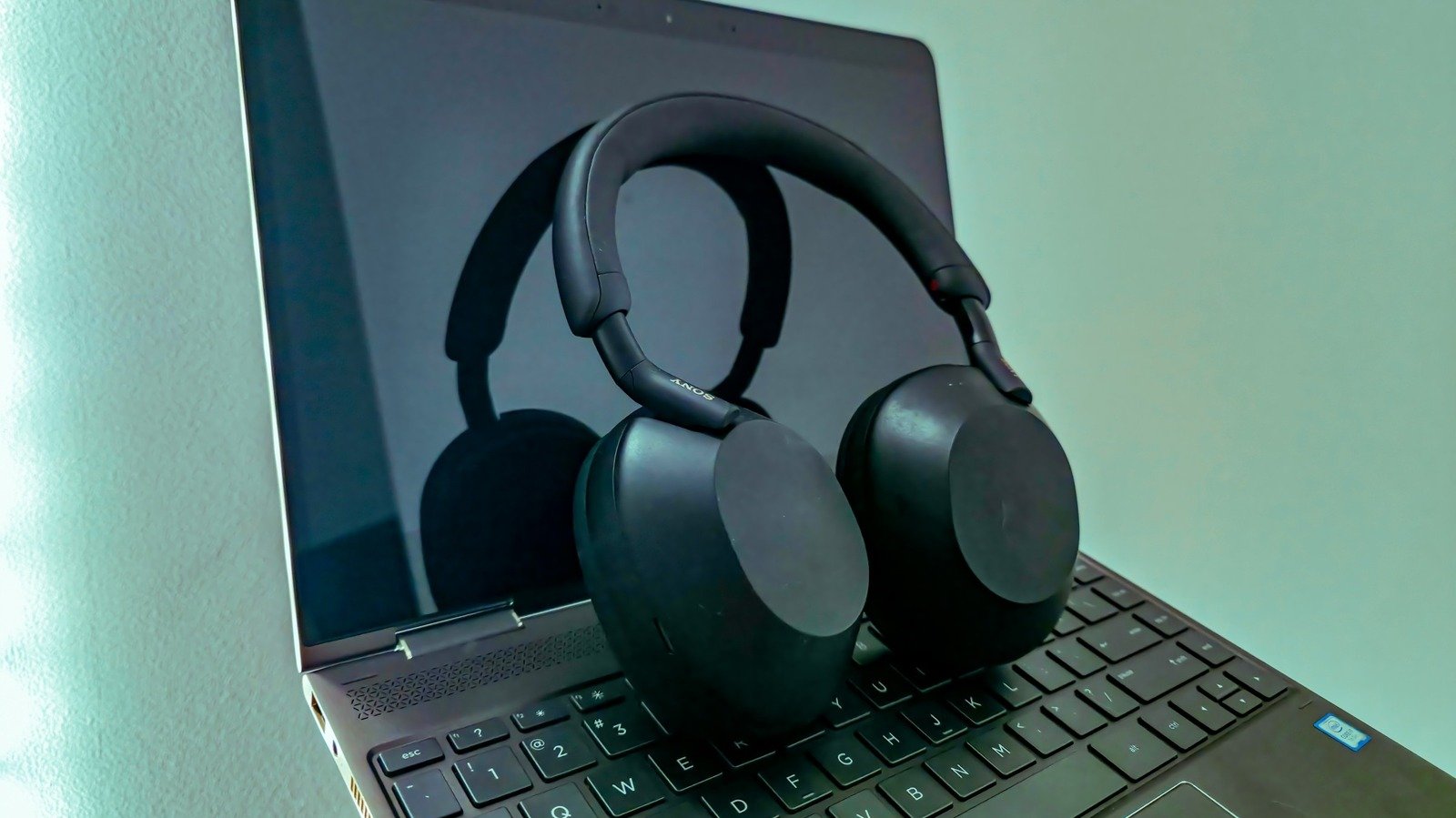
    Sony WH-1000XM5 Bluetooth headphones resting against an opened HP Spectre x360 laptop.
    Max Miller for Engadget

    Bluetooth headphones and earbuds are now incredibly common, and more people than ever own a pair. But despite how long Bluetooth has been around, pairing Bluetooth headphones to a computer can still be fiddly. Microsoft hasn’t helped, either, with Windows 11’s Bluetooth stability a constant bugbear, too, making things even worse — but more on that later.

    On paper, connecting headphones to a Windows 11 computer is relatively straightforward. The simplest way is to click the speaker icon in the bottom-right of the taskbar to open the quick settings panel, click the arrow next to the Bluetooth icon, and make sure the Bluetooth toggle is set to the on position.

    Then, put your device in pairing mode. How you enter pairing mode differs between products, so refer to the documentation for your specific headphones or earbuds. You’ll usually need to hold down a button, often with the Bluetooth logo. Select your device when it appears in the list of Bluetooth devices, and you’re connected.

    Connecting Bluetooth headphones to Windows 11 with the Settings app


    Close-up view of Windows 11 Settings.
    aileenchik/Shutterstock

    Connecting your Bluetooth earbuds or headphones to a Windows 11 PC is simple when things work correctly, but that doesn’t always happen. Bluetooth performance has long been a weak point on Windows 11, and Microsoft was still trying to improve things as of September 2026. If things don’t work, you’re probably not doing anything wrong and should look into other solutions, like updating your wireless drivers or rebooting your PC.

    You can also pair Bluetooth headphones by pressing Win + I to open Windows 11’s Settings and selecting Bluetooth & devices from the left-hand menu. Make sure that Bluetooth is on, as indicated by the toggle. Below that toggle, you’ll see the name your PC shows up as on other devices, which only matters if the device you’re pairing has a screen. If you’re pairing for the first time, click Add device, then click Bluetooth. Make sure your headphones are in pairing mode. The PC will begin to scan for ready-to-pair Bluetooth devices. Once your device appears in the Windows dialog, click it, and it should pair after a few moments.

    Some Bluetooth accessories support Swift Pair, which tries to proactively pair devices. Popular headphones, including the Sony WH-1000XM6 and Samsung Galaxy Buds 4 Pro — and previous models from those product lines — come with the feature. To set up a device with Swift Pair, make sure Bluetooth is enabled on your PC, then turn the device on and put it into pairing mode. You should see a pop-up on the PC asking if you want to connect with that device. Click Connect. Devices connected via Swift Pair will automatically connect to your PC.

    Bluetooth headphones Pair Windows
    Share. Facebook Twitter Pinterest LinkedIn Tumblr Email
    admin
    • Website

    Related Posts

    5 Underrated Apple Watch Shortcuts You Can Set Up In Minutes

    November 23, 2026

    NVIDIA Reinstates Jensen Huang As CEO And President, Effective Immediately

    November 23, 2026

    How To Clear The Cache On Microsoft Edge

    November 23, 2026
    Leave A Reply Cancel Reply

    Top Posts

    NVIDIA Is Investigating Reports That CEO Jensen Huang Was The Target Of Chinese Spy Efforts

    November 8, 202619 Views

    ADIndex: Layer-Adaptive Sparse Attention Indexing via Group-Level Distillation

    November 11, 20266 Views

    Anthropic releases new Mythos and Fable models amid RSI concerns

    November 9, 20266 Views

    If AGI is so close, why is everyone leaving? The neolabs and their bets

    November 6, 20266 Views
    Don't Miss
    Machine Learning

    Action-Conditioned Spatio-Temporal Forecasting

    By adminNovember 23, 20260

    arXiv:2611.27044v1 Announce Type: new Abstract: We study spatio-temporal forecasting in networked systems under specified actions.…

    Nvidia tried life without Jensen Huang and it lasted about two weeks

    November 23, 2026

    How To Pair Your Bluetooth Headphones To Your Windows PC

    November 23, 2026

    Unified Analysis of Discounted and Average-Reward Cases

    November 23, 2026
    About Us

    Welcome to TechWave Dispatch

    At TechWave Dispatch, we bring you the latest news, insights, and developments from the ever-evolving world of technology. Our mission is to keep readers informed about the innovations shaping our digital future.

    From artificial intelligence and machine learning to cybersecurity, robotics, smart devices, and groundbreaking technologies, we cover the topics that matter in today's fast-moving tech landscape.

    Our Picks

    Action-Conditioned Spatio-Temporal Forecasting

    November 23, 2026

    Nvidia tried life without Jensen Huang and it lasted about two weeks

    November 23, 2026

    How To Pair Your Bluetooth Headphones To Your Windows PC

    November 23, 2026
    Most Popular

    Egyptian and Nigerian English join the Open ASR Leaderboard

    November 6, 20260 Views

    Ads in Chatbots Have Arrived. Here’s What’s Working—and What’s Not

    November 6, 20260 Views

    The General Purpose Pendulum – O’Reilly

    November 6, 20260 Views
    Facebook X (Twitter) Instagram Pinterest
    • Terms and Conditions
    • Privacy Policy
    • Contact Us
    • About Us
    © 2026 TechWave Dispatch. All Rights Reserved.

    Type above and press Enter to search. Press Esc to cancel.