

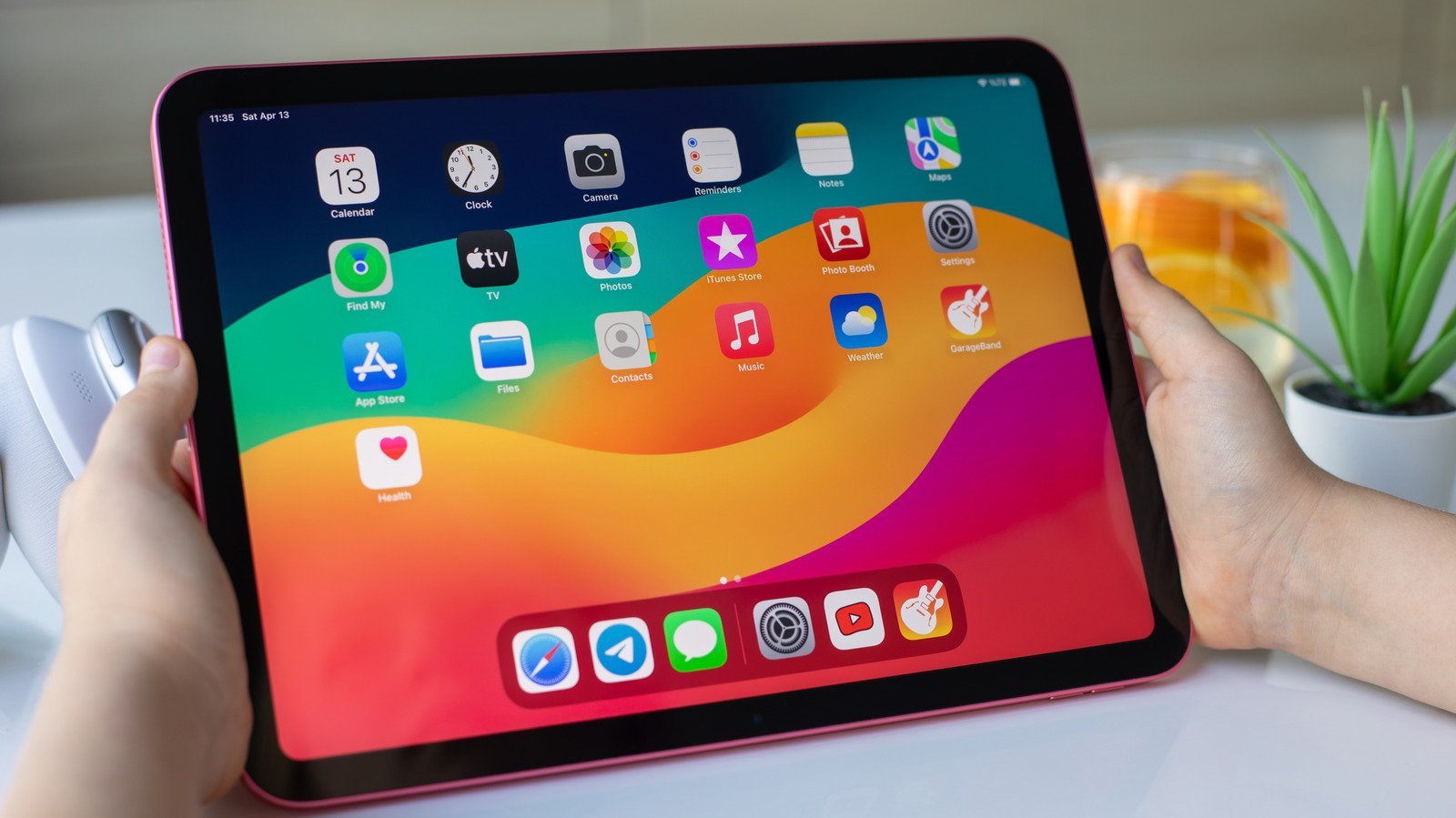
Before you consider a repair or replacement, a few simple checks of your tablet’s case, speakers and sound settings could help improve the audio.
If you sit down to watch a video on your tablet and you are struggling to hear the audio track, the problem might not be the speakers themselves but something blocking them. A case may be covering the openings, or dirt and debris may be obstructing them. An obstruction can easily leave the audio sounding muffled, as if the tablet were underwater.
You might think that the problem could be with the speakers themselves; perhaps they started sounding quieter after an update, or they just don’t function as well as they used to. But before you go out and buy an entirely new tablet, check for blocked speaker openings, see whether they need gentle cleaning and review your software and sound settings. These checks can help you improve the audio without paying for a repair or replacement.
Start with the case and the screen protector
Apple lists removing the case and screen protector as a first step on the way to fixing sound issues with the iPad, because it rules them out before you assume the speaker is the problem. A screen protector might be installed incorrectly, and it could be blocking the sound coming out of your speakers. A loose case or a lifting screen protector might also rattle against the body and muddle the sound.
Even if this is not the root cause of the sound problems, removing the cover and the screen protector gives you a clearer route to diagnosing the source of the problem. This might sound like an unnecessary step, but if the audio improves, put the case back on and test again to see whether it was responsible. If the sound gets worse again with the case fitted, leave it off while you decide whether to adjust its position or replace it. If you need a replacement, consider the best iPad cases for 2026 to help you narrow down the options.
Clean the speaker openings gently
Now that you have clear access to your speakers, it’s time to start cleaning them carefully. Knowing how to properly clean and sanitize your tech finds is useful: gentle handling matters when cleaning delicate surfaces. Start by powering the tablet off and unplugging all cables. Then use a small, nonmetallic, soft-bristled dry brush to try to remove as much dust and lint as you can from the speaker grilles. Make sure the brush itself is clean, and gently brush debris away from the openings.
Do not blow air into the speaker. It is very tempting to try to blow the dust away by applying a strong puff of air, using your mouth or compressed air, but that could make things worse. Use a microfiber cloth to remove the loosened debris, since your breath or compressed air might only lodge it further in. Your breath also contains moisture, which can make cleaning even harder.
Rule out software and settings
If cleaning the speakers doesn’t work, there is still one more thing to check, and that is the software. Your speakers might be working perfectly while your tablet is using the wrong sound settings. Check whether your equalizer settings are affecting the sound.
On Samsung Galaxy tablets, go to Settings > Sounds and vibration > Sound quality and effects > Equalizer. Check that the equalizer is set to Normal to start, since the other presets will change how audio sounds. For audio in the Music app on an iPad, go to Settings > Apps > Music > EQ, then just turn it off completely to see if the speakers sound any better.
Another way to narrow it down is to connect the tablet to a Bluetooth speaker or to a pair of earphones. If it sounds good on a Bluetooth speaker but bad on the built-in speaker, then the built-in speaker may be the problem. If you decide to use an external speaker, consider some of the best portable Bluetooth speakers like the JBL Charge 6 or Beats Pill.
