Close Menu
techwavedispatch.com

    Subscribe to Updates

    Get the latest creative news from FooBar about art, design and business.

    What's Hot

    How To Get Warnings About Speed Cameras In Android Auto

    November 28, 2026

    The Best Black Friday MacBook Deals Take Up to $300 Off

    November 28, 2026

    The Important iCloud Security Settings You Should Be Using

    November 28, 2026
    Facebook X (Twitter) Instagram
    Trending
    • How To Get Warnings About Speed Cameras In Android Auto
    • The Best Black Friday MacBook Deals Take Up to $300 Off
    • The Important iCloud Security Settings You Should Be Using
    • The Peak Design Gear We Love Is Up to 40 Percent Off at Shop.com
    • How Far Can You Track A Samsung SmartTag?
    • Oura Ring 5 Is $100 Off This Black Friday and Cyber Week (2026)
    • Infinity Vision Vs. IMAX: What’s The Difference?
    • HexClad Pans Black Friday Sale: Save Up to $70 (2026)
    Facebook X (Twitter) Instagram
    techwavedispatch.com
    Subscribe
    Saturday, November 28
    • Home
    • AI Tools & Software
    • Machine Learning
    • Generative AI
    • Robotics & Automation
    • Future Tech & Hardware
    • AI in Business
    • Ethics & Regulations
    • More
      • Gadgets & Smart Devices
      • Cybersecurity & AI
      • Tech Breakthroughs
    techwavedispatch.com
    Home»Gadgets & Smart Devices»How To Clean Up Your iCloud Storage To Free Up Space
    Gadgets & Smart Devices

    How To Clean Up Your iCloud Storage To Free Up Space

    adminBy adminNovember 17, 2026No Comments4 Mins Read
    Facebook Twitter Pinterest LinkedIn Tumblr Email
    How To Clean Up Your iCloud Storage To Free Up Space
    Share
    Facebook Twitter LinkedIn Pinterest Email

    A few settings changes can stop your iCloud from filling up again.


    An iPhone showing an iCloud full warning.
    FellowNeko/Shutterstock

    Apple doesn’t give you very much iCloud storage when you purchase one of its products, and no matter how many of its devices you buy, you never get more than a stingy 5GB. Since almost everything you sync or back up with Apple shares that space, how do you free up space once iCloud gets full?

    That space is occupied by all your photos, videos, backups, mail, mail attachments, data from apps like Messages and Notes, the contents of your iCloud Drive and some third-party app data — even images stored in Shared Albums, which began to count against your storage with iOS 27.

    You can upgrade your iCloud subscription from just $0.99 a month for 50GB, but deleting costs nothing. You can delete data held in files, photos, app backups, voice memos and everything else, either on your Apple device or via the iCloud website. However, anything you delete will be gone after a 30-day delay. Keep in mind that anything you remove from any of your apps, including photos and videos, will disappear across all your devices.

    The fastest ways to free up iCloud storage


    An iPhone showing the Settings icon on the home screen.
    Tada Images/Shutterstock

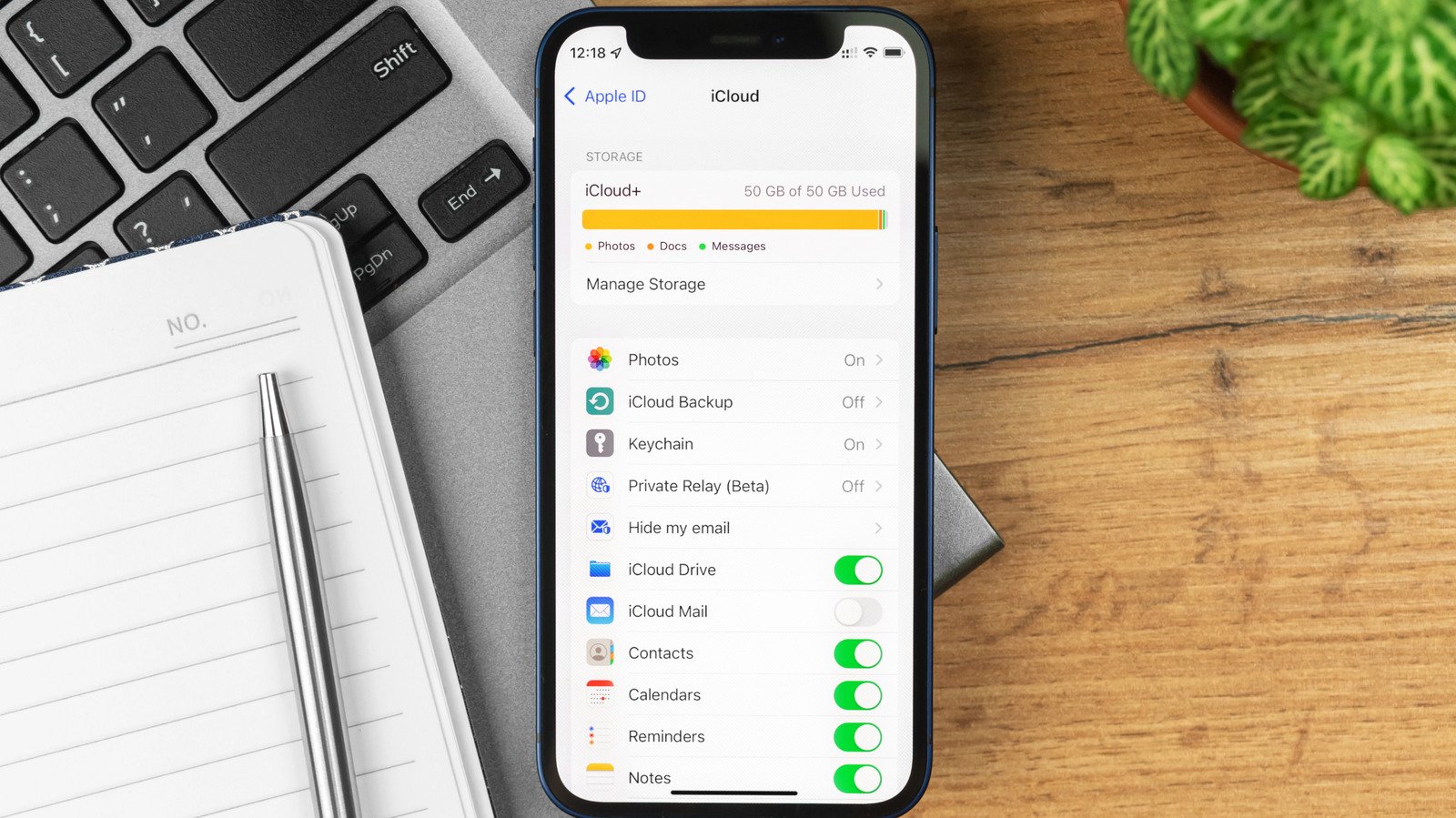
    You can check how much storage is being used and by what in iCloud Settings on your device or on the iCloud website. Go to Settings > [Your Name] > iCloud. Then click Manage (on Mac) or tap Storage (on iOS) to reach the storage management section. Note that on a Mac, Settings is called System Settings.

    Here you can review a list of all the apps taking up storage space, ranked by size. You’ll usually find Photos, Mail, Backups, iCloud Drive and Messages at the top of the list. It is also worth scrolling down to see if there are any apps you no longer use, taking up this precious space.

    Here are five of the fastest ways to free up iCloud storage:

    1. Open Settings > [Your Name] > iCloud > Storage > Recommended for You for suggestions to manage your storage.
    2. Open Photos and explore your video collection, deleting those you don’t need, as video takes up more space than still images.
    3. Open Messages Settings and change Keep Messages to 30 Days or 1 Year. Your devices will delete older messages and shared video to save space.
    4. Open Settings > [Your Name] > iCloud > Storage > Backups and delete old backups for devices you no longer own or use.
    5. Tap See All beside the Saved to iCloud item in Settings to toggle apps you don’t use to Off. This may affect how the apps work, so check before you try this.

    Managing the real space invaders in iCloud


    An iPhone displaying the iPhone Storage screen.
    FellowNeko/Shutterstock

    Photos and Mail are usually the biggest space hogs, so start there. To manage your Photos, tap Photos in iCloud Settings, then Manage Storage. You’ll see how many photos and videos you have synced with iCloud and find tools Apple provides to get rid of duplicates. 

    Another option is to transfer your iCloud photos to Google for image archiving or use an external HDD or SSD drive. iCloud Mail also counts toward your storage, so delete large attachments and empty your Trash, Junk and Deleted messages frequently.

    One final step: check the Recently Deleted folders in Photos, Mail, iCloud Drive and Notes frequently, as these hold items for about 30 days once you delete them. This lets you rescue items you deleted by mistake, but also means your storage remains full.

    If you find items you want to delete in those folders, select them and tap Delete to override the delay.

    clean Free iCloud Space Storage
    Share. Facebook Twitter Pinterest LinkedIn Tumblr Email
    admin
    • Website

    Related Posts

    How To Get Warnings About Speed Cameras In Android Auto

    November 28, 2026

    The Best Black Friday MacBook Deals Take Up to $300 Off

    November 28, 2026

    The Important iCloud Security Settings You Should Be Using

    November 28, 2026
    Leave A Reply Cancel Reply

    Top Posts

    NVIDIA Is Investigating Reports That CEO Jensen Huang Was The Target Of Chinese Spy Efforts

    November 8, 202620 Views

    Mixture of Experts Explained

    November 13, 202610 Views

    Anthropic launches Claude Meetings to turn workplace discussions into plans and tasks

    November 10, 20269 Views

    Finetuning olmOCR to be a faithful OCR-Engine

    November 10, 20268 Views
    Don't Miss
    Gadgets & Smart Devices

    How To Get Warnings About Speed Cameras In Android Auto

    By adminNovember 28, 20260

    These are the settings to look for in Google Maps and Waze. …

    The Best Black Friday MacBook Deals Take Up to $300 Off

    November 28, 2026

    The Important iCloud Security Settings You Should Be Using

    November 28, 2026

    The Peak Design Gear We Love Is Up to 40 Percent Off at Shop.com

    November 28, 2026
    About Us

    Welcome to TechWave Dispatch

    At TechWave Dispatch, we bring you the latest news, insights, and developments from the ever-evolving world of technology. Our mission is to keep readers informed about the innovations shaping our digital future.

    From artificial intelligence and machine learning to cybersecurity, robotics, smart devices, and groundbreaking technologies, we cover the topics that matter in today's fast-moving tech landscape.

    Our Picks

    How To Get Warnings About Speed Cameras In Android Auto

    November 28, 2026

    The Best Black Friday MacBook Deals Take Up to $300 Off

    November 28, 2026

    The Important iCloud Security Settings You Should Be Using

    November 28, 2026
    Most Popular

    Kitchen Composters I Recommend After 2 Years of Testing (2026)

    November 6, 20260 Views

    A Closer Look at Phonon TTS. Launching High-Quality On-Device Speech That Tops the Benchmarks.

    November 6, 20260 Views

    Texas was the new epicenter of the AI data center buildout. That might be kaput.

    November 6, 20260 Views
    Facebook X (Twitter) Instagram Pinterest
    • Terms and Conditions
    • Privacy Policy
    • Contact Us
    • About Us
    © 2026 TechWave Dispatch. All Rights Reserved.

    Type above and press Enter to search. Press Esc to cancel.