

If you’re not using this feature, you’re missing out on a lot of convenience.
If you own a Pixel phone, you probably look forward to the new features that pop up after an Android OS update and Pixel Drop. The latest Android 17 QPR2 and the November 2026 Pixel Drop, for example, upgraded Pixel Search and added cool customizable icon designs, Transit Mode for train commuters, Pixel VIPs real-time location sharing and a new Status bar settings menu for all Pixel 6a and newer phones, plus expanded Gemini Intelligence, Extreme Charging Mode and other features for the Pixel 10 and 11.
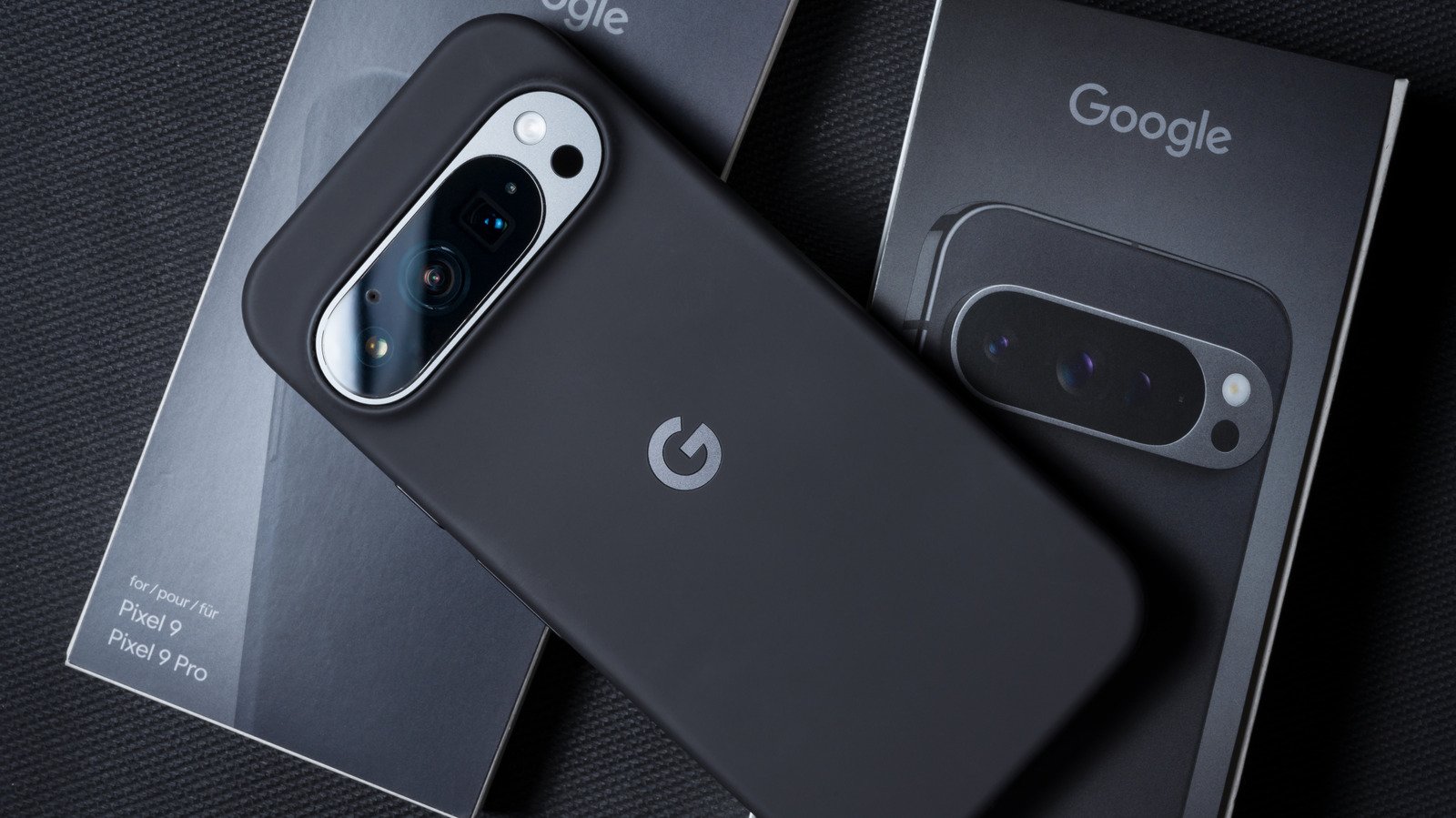
But there’s one old, reliable and underrated feature that you may have missed, and it’s actually quite versatile and convenient. It’s called Quick Tap, and it transforms the back of your Pixel phone into a customizable shortcut when you tap it twice. Quick Tap allows you to accomplish common tasks with just one hand and without scrolling through any menus.
Finding and assigning actions to the Quick Tap feature on your Pixel phone
The Quick Tap feature is available on all Pixel 4a (5G) and newer phones. To access it and to customize the settings, open the Settings app on your Pixel phone, then tap System > Gestures > Quick Tap to start actions.
From there, you can then choose a built-in action for Quick Tap to perform when you double-tap the back of your phone. All of these actions are pretty convenient, but since Quick Tap only supports one action at a time, you should choose the one you’re likely to use most.
You can assign Quick Tap to turn the flashlight on and off even when your phone is locked. Or set the feature to take a screenshot without having to hold the power and volume-down buttons at the same time. Quick Tap can also play or pause music, videos or podcasts using just about any of your favorite streaming apps with just a couple of taps. This is super convenient when you want to watch or listen to content while you’re driving, cooking or working out, because you don’t need to unlock the phone, navigate the apps and resume your media. Just double-tap the back of your Pixel.
Use Quick Tap to wake up Gemini without having to talk to the phone. Or assign Quick Tap to easily show notifications without having to pull the notification shade down from the top of the screen; Quick Tap pulls it down for you. You can also use the feature to open the multiple app overview screen and switch between recently used apps without navigating. Quick Tap can also launch any app installed on your Pixel phone — you just need to assign which app you use most.
One thing to consider: Quick Tap works perfectly on a naked Pixel phone. However, if you have a protective case on your phone, you might need to try a few things to get it working as it should. If your Pixel phone case is super thick, finger tapping may not be enough to get it going. Lighter-weight cases, though, should allow you to activate Quick Tap without much effort.
If you’re having trouble, there is an option within the Quick Tap settings called Require stronger taps, designed to prevent accidental triggering of an app when you put the phone down or slide it into your pocket. Make sure that’s turned off and then test it out. Messing around with where you tap your phone can also help. If you have a magnetic accessory on the back of the phone, keep tapping around until you find the sweet spot. For the foldable Pixel 9 Pro Fold and Pixel 11 Pro Fold phones, you can tap the rear glass panel whether the phone is unfolded or closed to activate Quick Tap.
How to get even more out of the Quick Tap feature
Quick Tap can be paired with other apps and automation tools to get even more out of the feature. The Tap, Tap app can be used to supplement Quick Tap by providing support for both double-taps and triple-taps, so you can assign more than one action and choose from a wider range of over 50 available actions to assign. You could also connect Quick Tap to a free pop-up menu or folder app so the double-tap triggers a menu of your most-used apps or tools.
Your Pixel phone is also loaded with built-in Gestures, which give you another way to access certain tools and features without having to unlock or swipe — or install another app like Tap, Tap. To find these, go to Settings > System > Gestures.
Let’s say you want to use your Quick Tap action to toggle the flashlight when you double-tap the phone, but you also want fast access to your camera or Google Wallet. You can do this by customizing your Gestures to open either the camera or Google Wallet by double-pressing the power button. You can also press and hold the power button to summon Gemini. Then there’s the Flip to Shhh feature that automatically enables Do Not Disturb when you place your Pixel phone facedown, as well as a shortcut that lets you tap or lift your phone to check the time, notifications and other info.
Between Quick Tap and Gestures, your Pixel phone is versatile enough to let you simply tap or press your way through a bunch of actions to maximize convenience and one-handed operation. That makes day-to-day phone use much more convenient. Assign it to your smart home device app for quick controllability, or have it open Google Wallet to quickly pay when you’re at the store, for example. Anyone who uses a phone knows it’s a whole lot easier to tap the phone than to unlock it or swipe through apps… especially if you only have one hand available.
