

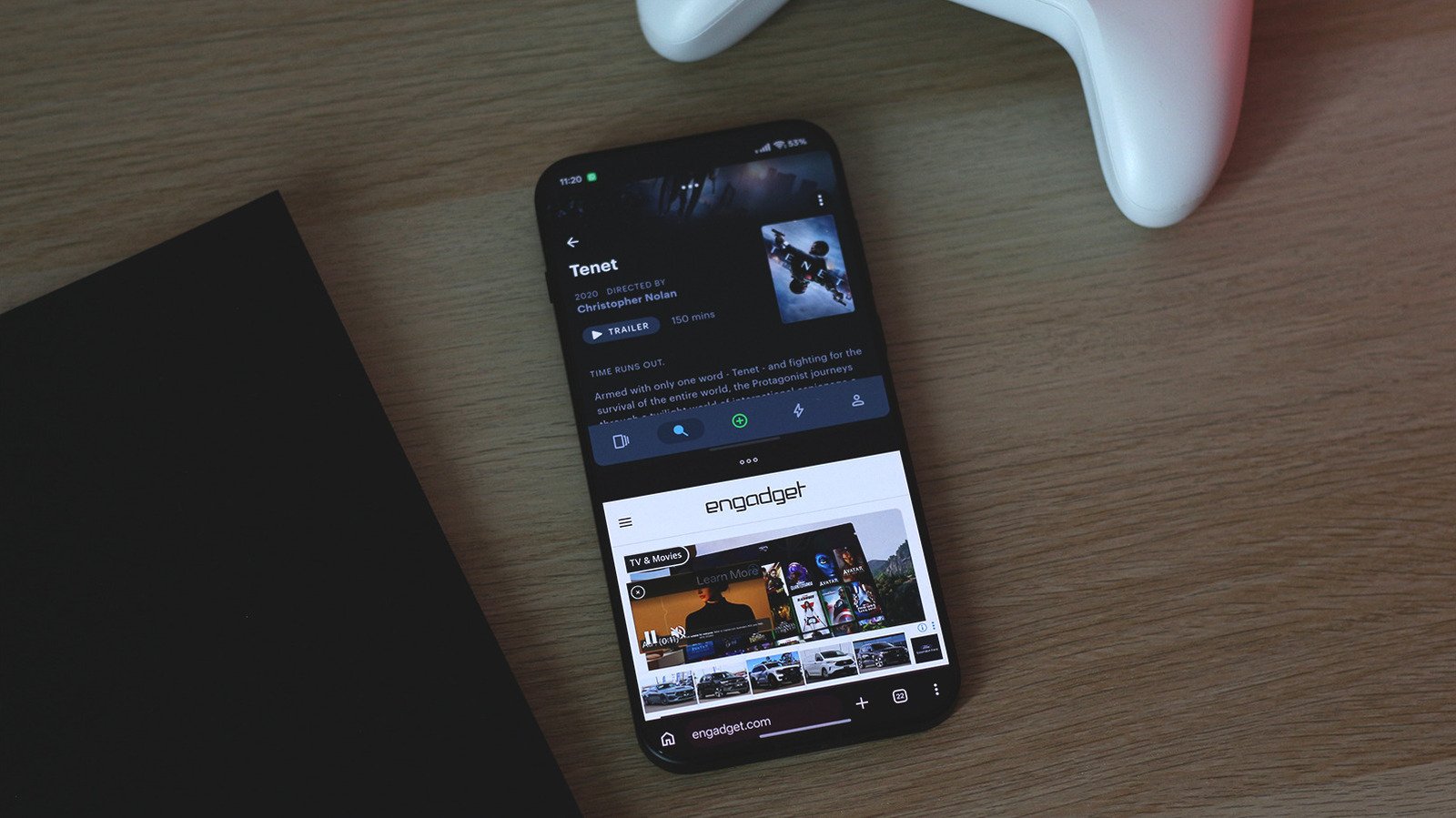
Slab-style phones can do this trick too.
Despite all odds, folding smartphones have stuck around. They’ve mostly found their place in two categories: flip phones that fold a regular-sized smartphone in half for portability and book-style phones that unfold to reveal a larger canvas. For years, foldables like the Galaxy Z Fold 8 have been marketed as productivity machines, allowing you to get more things done on a device you carry around in your pocket. Split screen multitasking is often highlighted as one of their biggest selling points, but you don’t need to set aside close to $2,000 just to use two apps at the same time.
Split screen multitasking has been around since Android 7.0 Nougat, which was released a decade ago in 2016. In fact, the feature was first discovered in Android 6.0 Marshmallow, though it required root access. All modern Android smartphones should come with this multitasking feature out of the box, but the exact steps to activate it might differ depending on your phone’s manufacturer and Android version. Most phones, including ones from Google, Samsung and Motorola, let you enable split screen multitasking through the recent apps switcher.
This can be accessed by swiping up from the very bottom and holding on the screen if you’re using gesture navigation, or by tapping the Recents button if you use the three-button navigation system. All of your opened apps will be listed here. Tap on an app’s icon and select Split Screen from the options that show up. You can now select a second app that you want open alongside the first one. You can further adjust how much space each app occupies by dragging the divider in the middle. Dragging it all the way up or down will exit the split screen mode.
Split screen isn’t Android’s only multitasking trick
Most traditional slab-style Android phones only let you use a maximum of two apps at once in split screen view — not that you’d realistically want to cram a third one onto such a small display anyway. This is where larger foldables let you take multitasking a step further by accommodating three or more apps at the same time. That said, split screen view isn’t the only multitasking feature that Android offers.
Modern Android phones also let you use apps in floating windows, which allows for a slightly different kind of multitasking. Instead of splitting your screen in two halves, a floating window appears on top of whatever app you’re currently using. This lets you view and interact with two apps simultaneously without splitting the screen. You can move the floating window around or resize it by grabbing its edges or corners.
Different manufacturers handle this feature differently. Pixel phones running Android 17, for instance, offer the Bubbles feature, which lets you use floating apps that collapse into Facebook Messenger-style chat heads when minimized, allowing you to open them quickly without leaving your current app. Samsung calls this feature Pop-up view while some manufacturers like OnePlus and Oppo simply label it Floating Windows.
ColorOS 17 handles it particularly well, even allowing you to change the aspect ratio of certain floating windows. My OnePlus 15 can accommodate two apps in split screen view and a third one running in a floating window on top, though I’m yet to find a use case that warrants this level of multitasking madness on a slab-style phone.
Why split screen doesn’t always work on Android
Though the feature has been around for a hot minute, you may find the split view mode not working in some cases. App compatibility has improved a lot over the years, but there are still a few apps that might not work in multiwindow setups. When this is the case, you’ll either find the Split View option greyed out or simply missing. It’s still worth heading to the Play Store and updating all of your apps to see if an app’s newer version might introduce support for split screen multitasking.
If not, this is Android we’re talking about, so of course there’s a workaround. Hidden away in the Developer Options menu is the Force activities to be resizable toggle. Turning this on might let you force split screen mode for apps that don’t officially support it. This might not always work, though. For instance, it seemed to do the trick for all unsupported apps on my older Android phone, but I didn’t have the same luck on my current device. There’s also no guarantee that unsupported apps will play nicely in split screen view.
The Developer Options menu is hidden by default. To enable it, navigate to Settings > About, look for the Build Number entry and tap on it seven times. Enter your PIN or password when prompted. Once enabled, you can find the hidden menu under Settings > System on most phones. While simply having Developer Options enabled isn’t inherently dangerous, it does hold many advanced settings that might affect your phone’s performance and stability, so it’s best to leave anything you’re not familiar with unchanged.
