

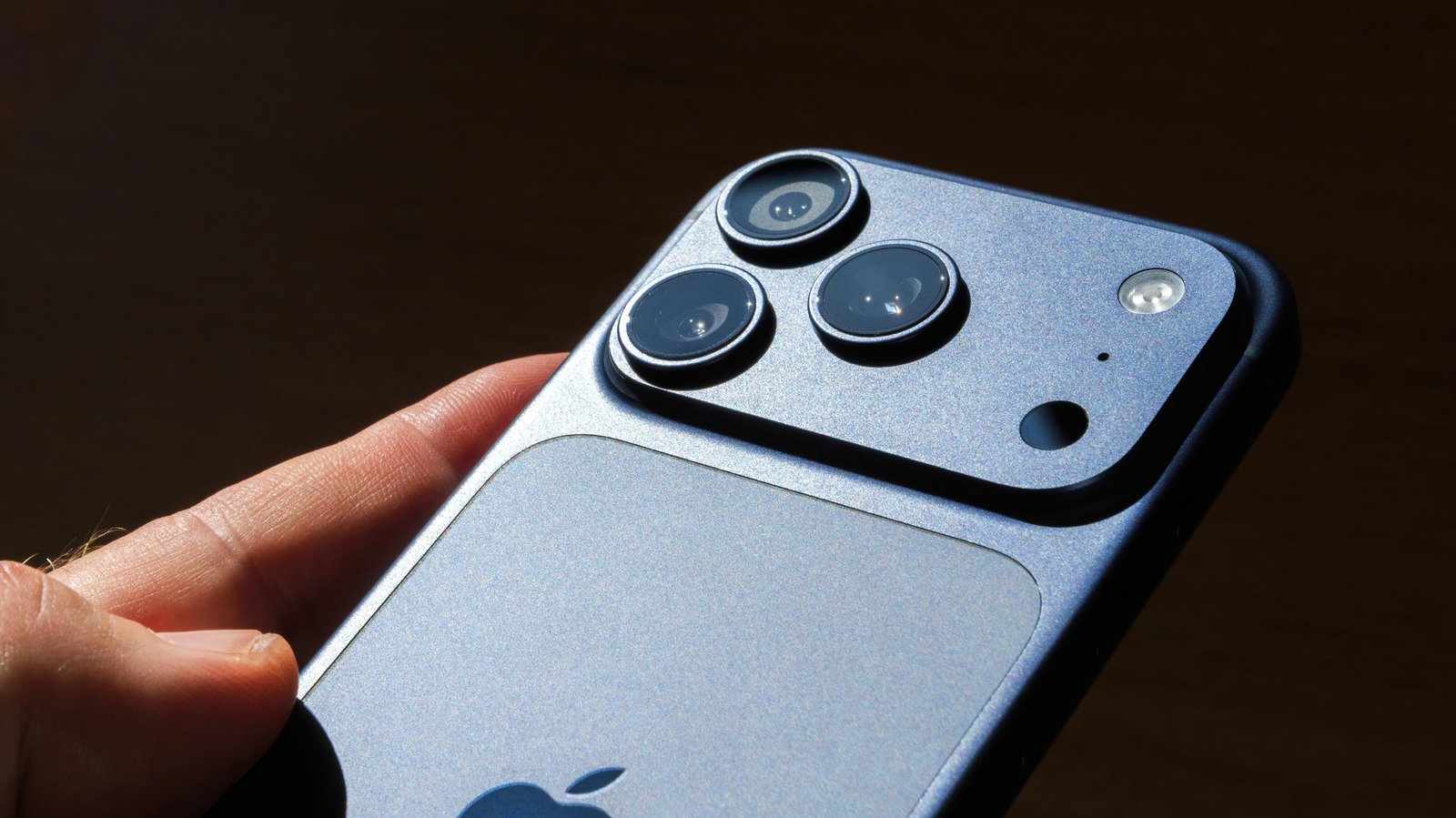
There’s a lot hiding in the camera app beyond the shutter button.
The iPhone camera is likely one of your staple apps. You can grab quick pics of whatever’s happening in your life, whether they’re destined for a social media post or you just need to save a receipt from a business lunch. Over the years, the camera app has become a powerful tool that can help you do a lot more than document a night out with friends. In truth, you might not know everything it can do. Or maybe you’ve forgotten some of it since the last Apple keynote demo.
Beyond snapping photos, the camera can help you in everyday life, whether you need to translate text from another language, convert a currency or make a phone call. It can even improve the video you’re shooting in a few ways, like image stabilization and focus controls. If you’re curious what else your camera can do, here’s a rundown of several lesser-known capabilities.
Help you navigate the world
The iPhone’s camera has several tools that can help you move through the world a little more easily. If you’re traveling abroad or come across something in a language you don’t speak, you can use the camera to translate. Make sure Live Text is enabled in your settings. Then, all you have to do is point the camera at the text. A yellow frame should appear, and you can tap the Live Text button on the lower right. Then tap Translate. If you want, you can also use a specific app, like Apple Translate or Google Translate. Live Text also works to convert currencies and units of measurement.
Live Text can also make it easier to visit websites or make phone calls. You can point your camera at a phone number or website, tap the Live Text icon, and you’ll have the option to visit the website or call the number. It’s faster than typing, and you won’t have to worry about typos. And of course, you can use your camera to scan QR codes. When you point your camera at a QR code, you’ll have the option of tapping the associated link.
Your camera can also function as a magnifying glass if there’s something far away you need to see. Or maybe you left your glasses at home. Your camera already has a few presets for its digital zoom, but you can pinch to zoom in further, or hold down one of the presets and drag to the left.
Shoot better video
While video recording has been available on the iPhone since the 3GS in 2009, the phone’s ability to capture high-quality video has come a long way. Action Mode, for example, stabilizes your footage, which helps if you don’t have a gimbal to steady your handheld shooting. When you’re in video mode, you can access it by tapping the button on the bottom right with the six dots. Apple notes that the feature works best in bright light. Action Mode is available on the iPhone 14 and newer models.
You can also add some polish to your video with cinematic mode. The feature lets you apply depth of field, so that your subject is in focus and the background is blurry. Apple notes that the feature can keep the subject in focus, even if it moves around, and shift focus when it identifies a new subject. You can also manually adjust the focus while recording. Cinematic mode is available on the iPhone 13 mini and up.
