

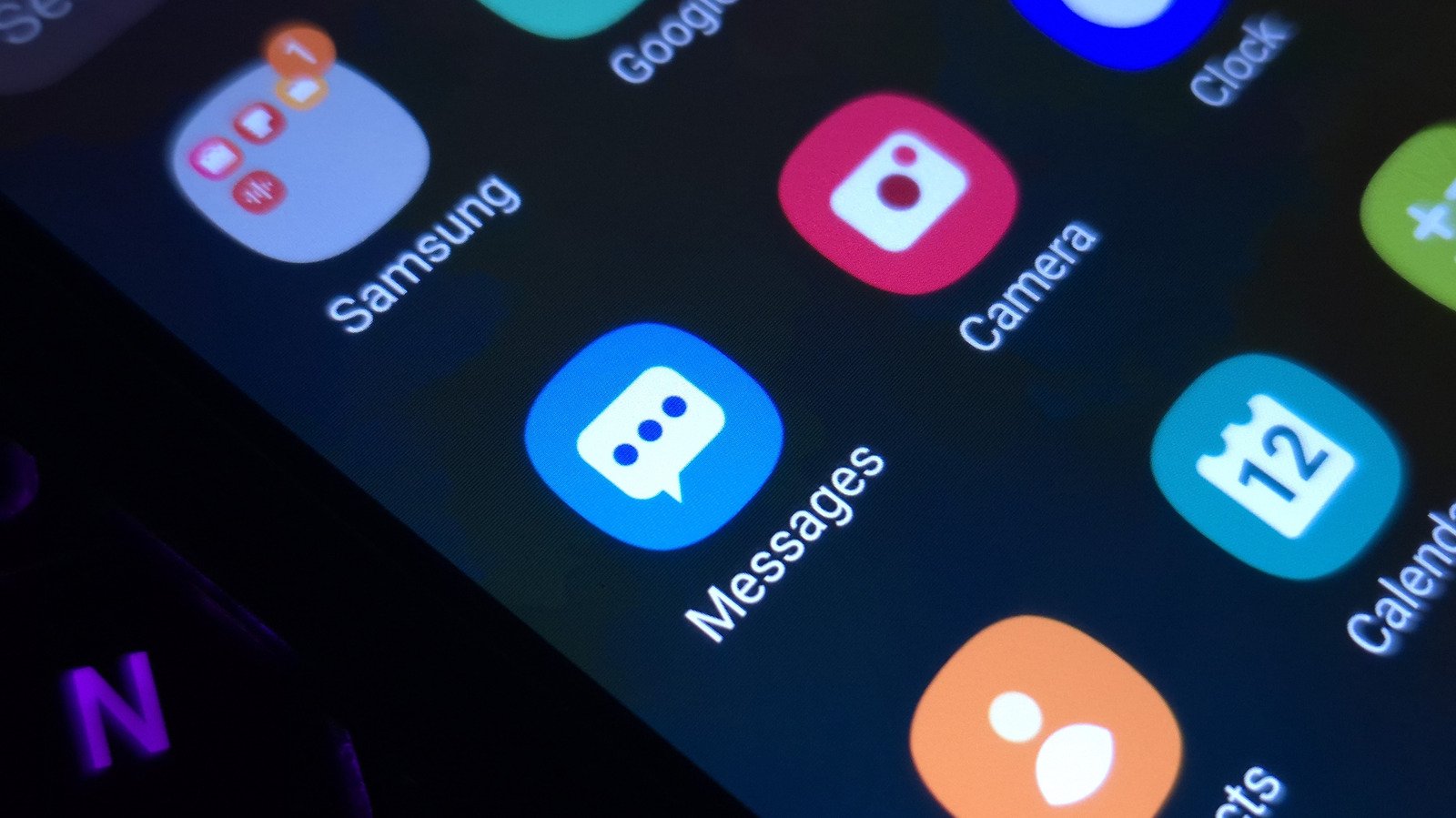
Give your Samsung Galaxy phone a one-of-a-kind look.
Cozy fireplaces, reimaginations of tourist destinations or even abstract concepts: Pick from these and more when you get to tinkering with app icons and unique customizations on Samsung Galaxy smartphones. Change them up to keep your phone looking fresh and to match your current mood or outfit.
In addition to changing the icons you interact with, themes also change the color scheme on system apps like Contacts, Settings and Messages. Swipe down, and you’ll also notice a sprinkle of color on your Quick Panel.
Here’s how you can get started with app icon customization. On the Home screen, right after unlocking your Galaxy phone, hold an empty area and tap Themes. Look through the options and download the ones you like. Then, press the Menu option and head to My stuff to access your Icons and Themes.
Select the ones you want and hit Apply to make the changes. While you cannot use your own images as app icons, the Themes app has all kinds of icons to download in the Icons section. Outside themes, Samsung owners have plenty more customization toys to play with.
What other customization features does a Samsung Galaxy phone offer?
If you’ve upgraded your Galaxy device to One UI 9, there are more features to play with, starting with the redesigned Quick Panel you can access by swiping down from the top-right corner. From resizing elements to moving them around or deleting them, tune things to your liking. For another sprinkle of customization, Samsung’s Galaxy Wearable app for its Watch lineup lets you change watch faces by snapping pictures of your outfit.
Samsung’s official Good Lock suite brings plenty more to the table. Download the app from the Play Store and you can mess around with motion wallpapers, lock screen designs and even your home screen. Within the app, you can download add-ons like Theme Park. In addition to system-wide themes, I love Theme Park’s options to change the colors of individual keys, notifications and Quick Panel switches like turning on Airplane Mode.
The company’s Home Up application expands your customization options with stickers, flexible placement of apps and widgets and custom gesture animations. Granular control over speed and vibration lets you adjust the experience as you see fit. Good Lock also has a nifty one-handed operation feature that lets you use diagonal swipes for different functions like opening Recent Apps or going to the Home screen.
Change the color palette of your Samsung Galaxy phone menus
To complete the look, you can change how menus and screens appear on your phone with more cool Samsung features. Head over to the Settings app and select Wallpaper and style. Now press Color palette and turn the switch next to it to activate it. Pick from a range of Wallpaper colors and Basic colors that match best with the look you’re going for.
As you select them, the previews at the top of the screen will give you a good idea of what navigating your device will look like. Press Apply when you’re ready and you’ll see your chosen color appear all over your phone’s interface, from switches in menus to buttons across system apps.
While the color palette might not affect every app icon, it can also be used to change most app icon colors instead of downloading a completely different theme. It’s a simple way to change how your home screen and app drawer look without getting a custom theme.
