

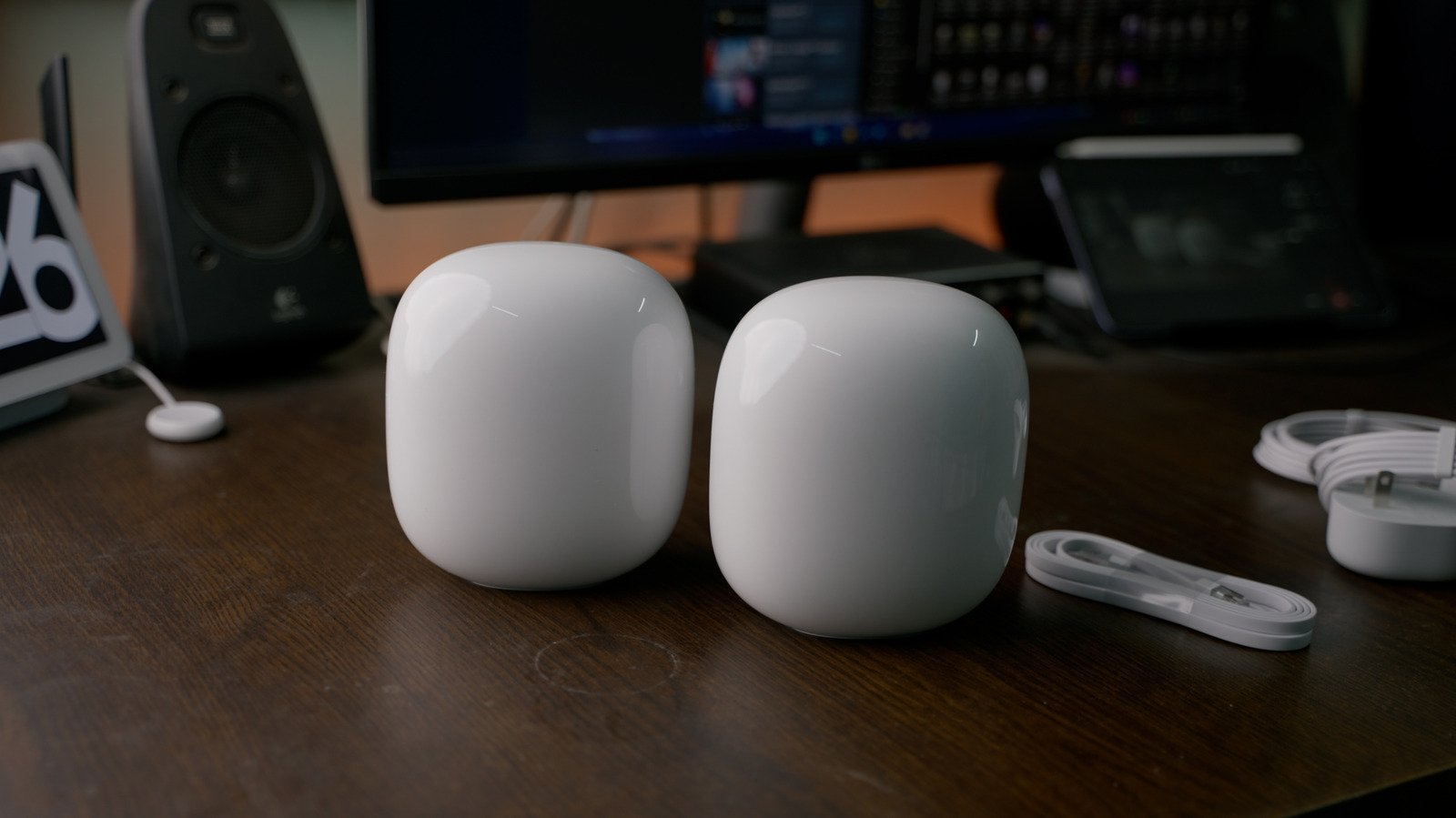
Your Wi-Fi router is like a busy train station, and once you get a sense of how things work, it’s easier to keep the incoming and outgoing traffic humming.
Demands on home Wi-Fi have increased considerably over the past decade, never mind the launch of the first routers way back in the 1990s. It used to be that homes had a handful of connected devices at most, typically big-ticket items like PCs and game consoles. Today, there’s a good chance your watch is online too, and that you’ve got a plethora of cool smart home gadgets ranging from lamps to smart speakers.
That can create a real crunch on performance. But why is that, exactly? You probably know part of the answer, yet there may be more going on than you imagine. Your Wi-Fi router isn’t just a series of tubes — a better analogy might be a central train station with complicated lines of incoming and outgoing traffic.
Once you have a sense of how things work, it’s easier to keep this congestion under control. It’s not just about minimizing the number of connected devices — controlling how and when gadgets connect can also have a substantial impact.
Why Wi-Fi speeds crumble under high loads
All Wi-Fi routers have an internal bandwidth cap, but there are some differences between types of home internet. Wi-Fi 6 and 6E routers top out at 9.6Gbps, whereas Wi-Fi 7 ups the ceiling to 46Gbps. Although you’re unlikely to approach even the 9.6Gbps mark, which is well beyond the scope of most internet plans, we should emphasize that these limits represent total available bandwidth — going not just to and from the internet but locally between devices. If someone’s transferring a few dozen gigabytes of video from their camera to their laptop, it could create momentary congestion if a bunch of other devices are also trying to run full-tilt.
Complicating matters is the issue of band congestion. Wi-Fi 6 provides 2.4 and 5GHz bands, while 6E and 7 add a 6GHz option. Each band is allocated only so many channels, so if a band fills up, the result is likely to be delays or a kick over to another band, assuming a device supports it and that your router isn’t using separate band IDs. The 2.4GHz band is particularly easy to overwhelm, since there are only three non-overlapping channels, and many low-power accessories don’t have 5 or 6GHz has a option.
In fact, all routers have an invisible limit on simultaneous connections, which is why you should upgrade immediately if you’re still using Wi-Fi 5. That protocol may only be able to handle as few as 10 to 25 active devices, and it’s going to boot older connections to make room for new ones once that limit is reached. I learned this the hard way when I started reviewing smart home gear in the 2010s.
What you can do to sidestep Wi-Fi congestion
Upgrading to Wi-Fi 7 may help, but be warned that it’s not a magic bullet. It’s still possible for a band to become overloaded. To truly take advantage of Wi-Fi 7’s features — such as “preamble puncturing,” which allows a channel coping with interference to be carved out for its remaining bandwidth — both your router and connecting devices need to support it. Chances are, most of the devices you own are still limited to Wi-Fi 6 or 6E.
With or without Wi-Fi 7, it may help to steer as many devices as possible over to 5 or 6GHz if your router allows the creation of separate band logins. It’s a win-win. While those bands have shorter range than 2.4GHz, they offer both less congestion and faster connection speeds for the devices that support them.
That’s not an option on mesh routers, however, so you may need to resort to other tactics, such as using your router’s app controls to pause unnecessary devices when a particular upload or download is crucial. In the long term, you should consider migrating as many smart home accessories as possible over to hub-based setups, particularly light bulbs. While standalone Wi-Fi bulbs are cheap and easy to set up, each one has to compete for available channels. Conversely, a hub can link dozens of products via protocols like Thread or Zigbee while only demanding a single Wi-Fi connection.
